In-app Payments SDK for Kotlin/Java (version 10.3.0)
With RuStore you can integrate payments in your mobile app.
-
If you don't know where to start read the instruction.
-
If you migrate to Pay SDK from billingClient SDK, see the migration instructions. For more details, see here.
Getting Started
repositories {
    maven {
        url = uri("https://artifactory-external.vkpartner.ru/artifactory/maven-rustore-exposed/")
    }
}
Connecting the dependency
Add the following code to your configuration file to add the dependency.
dependencies {
    implementation(platform("ru.rustore.sdk:bom:2026.04.01"))
    implementation("ru.rustore.sdk:pay")
}
Deeplink handling
Deeplink handling in the RuStore SDK allows you to efficiently interact with third-party applications when processing payments via banking applications (SBP, SberPay, etc.). This makes it possible to redirect the user to the payment screen and, after the transaction is completed, return them to your app.
To configure deeplink handling in your app and Pay SDK, specify the deeplinkScheme using sdk_pay_scheme_value
in your AndroidManifest.xml file and override the onNewIntent method of your Activity.
- When using deeplinks, specifying the scheme is mandatory.
- If a payment is initiated without a scheme, an error will occur.
- Only ASCII characters are allowed. The format must comply with RFC-3986.
Specifying deeplinkScheme:
<?xml version="1.0" encoding="utf-8"?>
<manifest xmlns:android="http://schemas.android.com/apk/res/android"
    xmlns:tools="http://schemas.android.com/tools"
    package="your.app.package.name">

    <application
        android:allowBackup="true"
        android:icon="@mipmap/ic_launcher"
        android:label="@string/app_name"
        android:roundIcon="@mipmap/ic_launcher_round"
        android:supportsRtl="true"
        android:theme="@style/Theme.App"
        tools:targetApi="n">
        <!-- ... -->

        <activity
            android:name=".YourPayActivity">

            <intent-filter>
                <action android:name="android.intent.action.MAIN" />
                <category android:name="android.intent.category.LAUNCHER" />
            </intent-filter>

            <intent-filter>
                <action android:name="android.intent.action.VIEW" />
                <category android:name="android.intent.category.DEFAULT" />
                <category android:name="android.intent.category.BROWSABLE" />
                <data android:scheme="yourappscheme" />
            </intent-filter>

        </activity>

        <meta-data
            android:name="sdk_pay_scheme_value"
            android:value="yourappscheme" />

    </application>
</manifest>
Replace yourappscheme with your own scheme name, for example ru.package.name.rustore.scheme.
Then add the following code to the Activity you want to return to after the payment is completed (your app page):
class YourBillingActivity: AppCompatActivity() {

    private val intentInteractor: IntentInteractor by lazy {
        RuStorePayClient.instance.getIntentInteractor()
    }

    override fun onCreate(savedInstanceState: Bundle?) {
        super.onCreate(savedInstanceState)
        if (savedInstanceState == null) {
            intentInteractor.proceedIntent(intent, sdkTheme = SdkTheme.LIGHT)  // Optional theme
        }
    }

    override fun onNewIntent(intent: Intent?) {
        super.onNewIntent(intent)
        intentInteractor.proceedIntent(intent, sdkTheme = SdkTheme.LIGHT)  // Optional theme
    }
}
To restore your app state when returning via a deeplink, add the android:launchMode="singleTop" attribute to AndroidManifest.xml.
<?xml version="1.0" encoding="utf-8"?>
<manifest xmlns:android="http://schemas.android.com/apk/res/android"
    xmlns:tools="http://schemas.android.com/tools"
    package="your.app.package.name">
    <!-- ... -->

    <application>
      <!-- ... -->
        <activity
            android:name=".YourPayActivity"
            android:launchMode="singleTop"
            android:exported="true"
            android:screenOrientation="portrait"
            android:windowSoftInputMode="adjustResize">

            <!-- ... -->

        </activity>
      <!-- ... -->
    </application>

</manifest>
SDK Initialization
Initialize the library before calling its methods.
The initialization itself is done automatically, however, for your SDK to work, define console_app_id_key in your manifest.xml.
You can so it the following way:
A deeplink in the RuStore Payments SDK is required for proper interaction with third-party payment applications. It helps users complete purchases faster in an external app and return to your application.
To set up deeplink support in your application and the RuStore SDK, specify the deeplinkScheme inside your AndroidManifest file and override the onNewIntent method of your Activity. Additionally, for the SDK to work, you need to specify sdk_pay_scheme_value in your Manifest.xml file.
<?xml version="1.0" encoding="utf-8"?>
<manifest xmlns:android="http://schemas.android.com/apk/res/android"
    xmlns:tools="http://schemas.android.com/tools"
    package="your.app.package.name">

    <application
            android:allowBackup="true"
            android:icon="@mipmap/ic_launcher"
            android:label="@string/app_name"
            android:roundIcon="@mipmap/ic_launcher_round"
            android:supportsRtl="true"
            android:theme="@style/Theme.App"
            tools:targetApi="n">
        ...

        <meta-data
                android:name="console_app_id_value"
                android:value="@string/CONSOLE_APPLICATION_ID" />

    </application>
</manifest>
-
Example:CONSOLE_APPLICATION_ID— product ID form the RuStore Console.https://console.rustore.ru/apps/111111.
Where are app IDs in the RuStore Console?
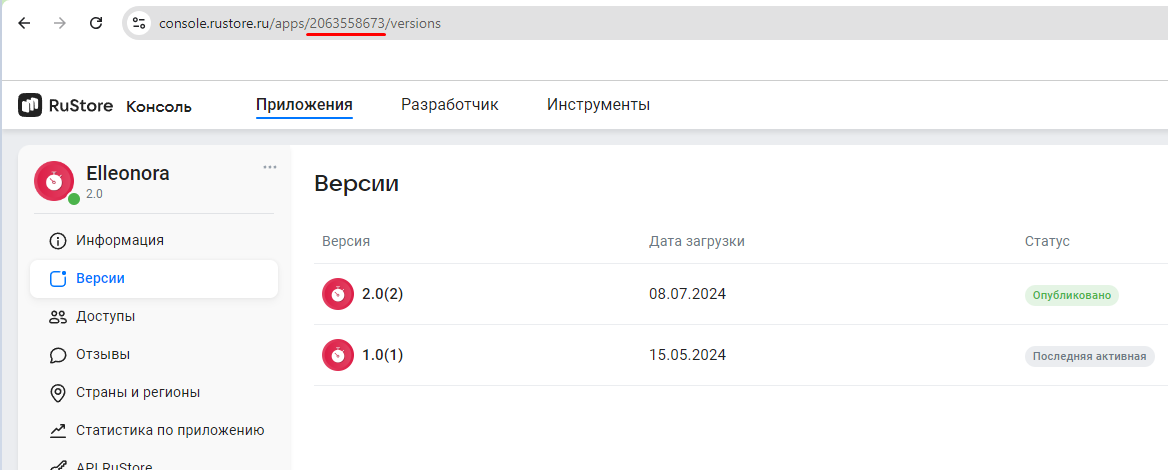
- Navigate to the Applications tab and selected the needed app.
- Copy the ID from the URL address of the app page — it is a set of numbers between
apps/and/versions. FOr example, for URL addresshttps://console.rustore.ru/apps/123456/versionsthe app ID is123456.
- The
ApplicationIdspecified inbuild.gradlemust match theapplicationIdof the APK file that you published in the RuStore Console. -
The
keystoresignature must match the signature that was used to sign the app published in the RuStore Console. Make sure thatbuildTypeused (example:debug) uses the same signature as the published app (example:release).
For security purposes, the SDK sets android:usesCleartextTraffic="false" by default to prevent data transmission over unencrypted HTTP and protect against "Man-in-the-Middle" attacks. If your application requires the use of HTTP, you can change this attribute to true, but do so at your own risk, as this increases the chance of data interception and substitution. We recommend allowing unencrypted traffic only in exceptional cases and for trusted domains, preferring HTTPS for all network interactions.
Required Permissions and Security Parameters
The Pay SDK automatically adds some permissions and parameters to the application's manifest that are necessary for the functionality related to payment security.
Permissions BLUETOOTH and BLUETOOTH_CONNECT
<uses-permission android:name="android.permission.BLUETOOTH" />
<uses-permission android:name="android.permission.BLUETOOTH_CONNECT" />
These permissions are required for the session anti-fraud system, which protects user payments. Collecting such data can be useful for incident analysis, for example, when investigating account theft.
If you do not want to provide access to Bluetooth, these permissions can be removed from the manifest — the Pay SDK will continue to work, it just won't collect these additional data for scoring.
Other Permissions
The Pay SDK may also require other standard permissions, such as:
<uses-permission android:name="android.permission.INTERNET" />
<uses-permission android:name="android.permission.ACCESS_NETWORK_STATE" />
<uses-permission android:name="android.permission.ACCESS_WIFI_STATE" />
SDK Methods
Available public interactors:
-
PurchaseInteractor– an interactor that lets you work with payments and provides several public methods.getPurchase(purchaseId: PurchaseId): Task<Purchase>– returns information about a purchase by its ID.getPurchases(productType: ProductType? = null, purchaseStatus: PurchaseStatus? = null): Task<List<Purchase>>— returns the user’s purchases. This method supports optional filtering by product type (consumable, non-consumable products or subscriptions) and by purchase status (supported statuses arePAID,CONFIRMED,ACTIVE, andPAUSED). By default, filters are disabled and all user purchases (regardless of product type) in thePAID,CONFIRMED,ACTIVE, andPAUSEDstatuses are returned.getPurchaseAvailability(): Task<PurchaseAvailabilityResult>– returns the result of checking whether payments are available.purchase(params: ProductPurchaseParams, preferredPurchaseType: PreferredPurchaseType = PreferredPurchaseType.ONE_STEP,sdkTheme: SdkTheme = SdkTheme.LIGHT,purchaseEventListener: PurchaseEventListener? = null): Task<ProductPurchaseResult>– makes a product purchase with the specified payment type: one-step (ONE_STEP) or two-step (TWO_STEP). For this method, all available payment methods are shown on the payment screen. If the parameter is not specified, a one-step payment flow is used by default.
ImportantIf the
TWO_STEPpayment type is specified, the SDK will attempt to start a two-step payment flow, but the final result will directly depend on which payment method (card, SBP, etc.) the user selects.Note that the
TWO_STEPpayment type is not available:- When SBP is selected as the payment method.
- When purchasing subscriptions.
Two-step payment is available only for a specific set of payment methods (at the moment — cards and SberPay only). If the selected payment method does not support authorization hold, the purchase will fall back to a one-step payment flow.
purchaseTwoStep(params: ProductPurchaseParams,sdkTheme: SdkTheme = SdkTheme.LIGHT,purchaseEventListener: PurchaseEventListener? = null): Task<ProductPurchaseResult>– starts a guaranteed two-step purchase flow. When this method is used, only payment methods that support two-step payment are available to the user on the payment screen. During the payment flow, the customer’s funds are first put on hold and are charged only after the purchase is confirmed with theconfirmTwoStepPurchasemethod.confirmTwoStepPurchase(purchaseId: PurchaseId, developerPayload: DeveloperPayload? = null)– confirms a purchase made with a two-step payment flow.cancelTwoStepPurchase(purchaseId: PurchaseId)– cancels a purchase made with a two-step payment flow.
-
ProductInteractor– an interactor that lets you work with products:getProducts(productsId: List<ProductId>): Task<List<Product>>– returns information about active products published in the RuStore Console.ImportantThis method returns no more than 1000 products and works without user authorization or RuStore being installed on the user’s device.
-
UserInteractor– an interactor that lets you get the user’s authorization status (UserAuthorizationStatus). This model has two possible states:Authorized– the user is authorized in RuStore.Unauthorized– the user is not authorized in RuStore.
-
IntentInteractor– an interactor that lets you handle intents and deeplinks. It is required to correctly return from the banking app back to your app and restore the state of the payment screen.proceedIntent(intent: Intent?, sdkTheme: SdkTheme = SdkTheme.LIGHT)– a method for handling deeplinks and restoring the state of the payment screen when returning to your app from a banking app. You must call this method to correctly display the payment screen when returning to the app from a banking app.
-
The
RuStoreUtilsblock – a set of public helper methods, such as:isRuStoreInstalled– checks whether the RuStore app is installed on the user’s device.openRuStoreDownloadInstruction– opens the web page for downloading the RuStore app.openRuStore– launches the RuStore app.openRuStoreAuthorization– launches the RuStore app for user authorization. After the user is successfully authorized, the RuStore app closes automatically.
Retrieving product list
- Kotlin
- Java
To retrieve the products added to your application via the RuStore Console, you must use the method:s getProducts.
RuStorePayClient.instance.getProductInteractor().getProducts(productsId = listOf(ProductId("id1"), ProductId("id2")))
    .addOnSuccessListener { products: List<Product> ->
        // Logic for working with a list of products
    }
    .addOnFailureListener { throwable: Throwable ->
        // Handling error
    }
productsId: List<ProductId> — the list of product IDs that are set when products are created in the RuStore Console. The list is limited by 1000 items.
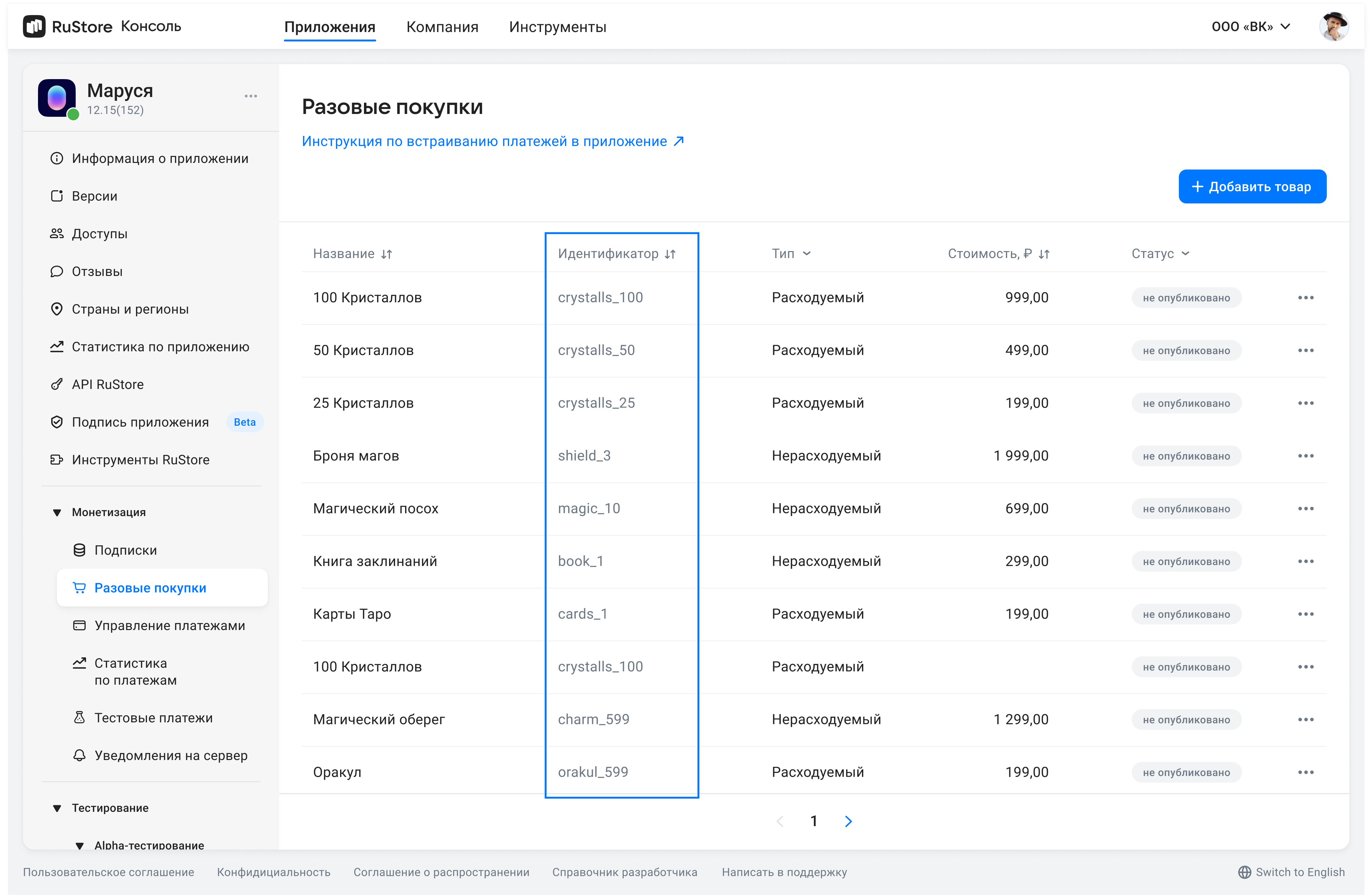
Where are product IDs in the RuStore Console?
- Navigate to the Applications tab and selected the needed app.
- Select Monetization in the left menu.
- Select product type: Subscriptions or In-App purchases.
- Copy the IDs of the required products.
The method returns a list of products. The product model is provided below.
public class Product internal constructor(
    public val productId: ProductId,
    public val type: ProductType,
    public val amountLabel: AmountLabel,
    public val price: Price?,
    public val currency: Currency,
    public val imageUrl: Url,
    public val title: Title,
    public val description: Description?,
    public val subscriptionInfo: SubscriptionInfo?,
)
productId— product ID assigned to product in RuStore Console (mandatory).type— product type.CONSUMABLE/NON-CONSUMABLE/SUBSCRIPTION(consumable/non-consumable/subscription).amountLabel— formatted purchase price, including currency symbol.price— price in minimum currency units.currency— ISO 4217 currency code.title— product name inlanguage.description— descriptions inlanguage.imageUrl— image URL.
The subscriptionInfo model contains information about the subscription product.
The presence of these fields does not mean that the free or introductory period is still available to the user: they may have already used these periods earlier.
The model is shown below.
public class SubscriptionInfo internal constructor(
    public val periods: List<SubscriptionPeriod>,
)

public sealed interface SubscriptionPeriod

public class TrialPeriod internal constructor(
    public val duration: String,
    public val currency: String,
    public val price: Int,
) : SubscriptionPeriod {

public class PromoPeriod internal constructor(
    public val duration: String,
    public val currency: String,
    public val price: Int,
) : SubscriptionPeriod

public class MainPeriod internal constructor(
    public val duration: String,
    public val currency: String,
    public val price: Int,
) : SubscriptionPeriod

public class GracePeriod internal constructor(
    public val duration: String,
) : SubscriptionPeriod

public class HoldPeriod internal constructor(
    public val duration: String,
) : SubscriptionPeriod
duration- period duration in ISO 8601 format (same as in Public API)currency- currency code in ISO 4217 format.price- price in minimum units.
Subscription periods
-
TrialPeriod— free period -
PromoPeriod— introductory period -
MainPeriod— standard subscription period -
GracePeriod— grace period -
HoldPeriod— hold period
For more information about how subscription periods work, see the article.
subscriptionInfo example
RuStorePayClient.instance.getProductInteractor().getProducts(productsId = listOf(ProductId("id1"), ProductId("id2")))
    .addOnSuccessListener { products: List<Product> ->
        products.forEach { product ->
            val periods = product.subscriptionInfo?.periods
            when (period) {
                is TrialPeriod -> {
                    println("Free period: ${period.duration} за ${period.price} ${period.currency}")
                }
                is PromoPeriod -> {
                    println("Trial period: ${period.duration} за ${period.price} ${period.currency}")
                }
                is MainPeriod -> {
                    println("Main period: ${period.duration} за ${period.price} ${period.currency}")
                }
                is GracePeriod -> {
                    println("Grace period: ${period.duration}")
                }
                is HoldPeriod -> {
                    println("Hold period: ${period.duration}")
                }
                null -> {
                  println("subscriptionInfo is null")
                }
            }
        }
    }
    .addOnFailureListener { throwable: Throwable ->
        // Handling error
    }
Response examples
Product(
    productId = ProductId("conProduct1"),
    type = ProductType.CONSUMABLE_PRODUCT,
    amountLabel = AmountLabel("100.00 руб."),
    price = Price(10000),
    currency = Currency("RUB"),
    imageUrl = Url("https://your_image_consumable_product.png"),
    title = Title("Название Потребляемого продукта"),
    description = Description("Описание потребляемого продукта"),
 )
Product(
    productId = ProductId("nonConProduct1"),
    type = ProductType.NON_CONSUMABLE_PRODUCT,
    amountLabel = AmountLabel("200.00 руб."),
    price = Price(20000),
    currency = Currency("RUB"),
    imageUrl = Url("https://your_image_non_consumable_product.png"),
    title = Title("Название Непотребляемого продукта"),
    description = Description("Описание Непотребляемого продукта"),
 )
Product(
    productId = ProductId("sub_1"),
    type = ProductType.SUBSCRIPTION,
    amountLabel = AmountLabel("300.00 руб."),
    price = Price(30000),
    currency = Currency("RUB"),
    imageUrl = Url("https://your_image_subscription.png"),
    title = Title("Название вашей подписки"),
    description = Description("Описание вашей подписки"),
    subscriptionInfo = SubscriptionInfo(
        periods = listOf(
            TrialPeriod(
                duration = "P1M",
                currency = "RUB",
                price = 0
            ),
            PromoPeriod(
                duration = "P5D",
                currency = "RUB",
                price = 149
            ),
            MainPeriod(
                duration = "P1Y",
                currency = "RUB",
                price = 299
            ),
            GracePeriod(
                duration = "P3D"
            ),
            HoldPeriod(
                duration = "P5D"
            )
        )
    )
 )
To retrieve the products added to your application via the RuStore Console, you must use the method:s getProducts.
List<ProductId> productsId = Arrays.asList(new ProductId("id1"), new ProductId("id2"));
ProductInteractor productInteractor = RuStorePayClient.Companion.getInstance().getProductInteractor();

productInteractor.getProducts(productsId)
    .addOnSuccessListener(products -> {
        // Logic for working with products list
    })
    .addOnFailureListener(throwable -> {
        // Handling error
    });
productsId: List<ProductId> — the list of product IDs that are set when products are created in the RuStore Console. The list is limited by 1000 items.
Where are product IDs in the RuStore Console?
- Navigate to the Applications tab and selected the needed app.
- Select Monetization in the left menu.
- Select product type: Subscriptions or In-App purchases.
- Copy the IDs of the required products.
The method returns a list of products. The product model is provided below.
public class Product {
    private final ProductId productId;
    private final ProductType type;
    private final AmountLabel amountLabel;
    private final Price price;
    private final Currency currency;
    private final Url imageUrl;
    private final Title title;
    private final Description description;
    private final SubscriptionInfo subscriptionInfo;

    public Product(ProductId productId, ProductType type, AmountLabel amountLabel, @Nullable Price price, Currency currency, Url imageUrl, Title title, @Nullable Description description, @Nullable SubscriptionInfo subscriptionInfo) {
        this.productId = productId;
        this.type = type;
        this.amountLabel = amountLabel;
        this.price = price;
        this.currency = currency;
        this.imageUrl = imageUrl;
        this.title = title;
        this.description = description;
        this.subscriptionInfo = subscriptionInfo;
    }

    public ProductId getProductId() {
        return productId;
    }

    public ProductType getType() {
        return type;
    }

    public AmountLabel getAmountLabel() {
        return amountLabel;
    }

    public @Nullable Price getPrice() {
        return price;
    }

    public Currency getCurrency() {
        return currency;
    }

    public Url getImageUrl() {
        return imageUrl;
    }

    public Title getTitle() {
        return title;
    }

    public @Nullable Description getDescription() {
        return description;
    }

    public @Nullable SubscriptionInfo getSubscriptionInfo() {
        return subscriptionInfo;
    }
}
productId— product ID assigned to product in RuStore Console (mandatory).type— product type.CONSUMABLE/NON-CONSUMABLE/SUBSCRIPTION(consumable/non-consumable/subscription).amountLabel— formatted purchase price, including currency symbol.price— price in minimum currency units.currency— ISO 4217 currency code.title— product name inlanguage.description— descriptions inlanguage.imageUrl— image URL.
The subscriptionInfo model contains information about the subscription product.
The presence of these fields does not mean that the free or introductory period is still available to the user: they may have already used these periods earlier.
The model is shown below.
public final class SubscriptionInfo {
    private final List<SubscriptionPeriod> periods;

    public SubscriptionInfo(List<SubscriptionPeriod> periods) {
        this.periods = periods;
    }

    public List<SubscriptionPeriod> getPeriods() {
        return periods;
    }
}

public interface SubscriptionPeriod {
    String getDuration();
}

public final class TrialPeriod implements SubscriptionPeriod {
    private final String duration;
    private final String currency;
    private final int price;

    public TrialPeriod(String duration, String currency, int price) {
        this.duration = duration;
        this.currency = currency;
        this.price = price;
    }

    public String getDuration() { return duration; }
    public String getCurrency() { return currency; }
    public int getPrice() { return price; }
}

public final class PromoPeriod implements SubscriptionPeriod {
    private final String duration;
    private final String currency;
    private final int price;

    public PromoPeriod(String duration, String currency, int price) {
        this.duration = duration;
        this.currency = currency;
        this.price = price;
    }

    public String getDuration() { return duration; }
    public String getCurrency() { return currency; }
    public int getPrice() { return price; }
}

public final class MainPeriod implements SubscriptionPeriod {
    private final String duration;
    private final String currency;
    private final int price;

    public MainPeriod(String duration, String currency, int price) {
        this.duration = duration;
        this.currency = currency;
        this.price = price;
    }

    public String getDuration() { return duration; }
    public String getCurrency() { return currency; }
    public int getPrice() { return price; }
}

public final class GracePeriod implements SubscriptionPeriod {
    private final String duration;

    public GracePeriod(String duration) {
        this.duration = duration;
    }

    public String getDuration() { return duration; }
}

public final class HoldPeriod implements SubscriptionPeriod {
    private final String duration;

    public HoldPeriod(String duration) {
        this.duration = duration;
    }

    public String getDuration() { return duration; }
}
duration- period duration in ISO 8601 format (same as in Public API)currency- currency code in ISO 4217 format.price- price in minimum units.
Subscription periods
-
TrialPeriod— free period -
PromoPeriod— introductory period -
MainPeriod— standard subscription period -
GracePeriod— grace period -
HoldPeriod— hold period
For more information about how subscription periods work, see the article.
subscriptionInfo example
List<ProductId> productsId = Arrays.asList(new ProductId("id1"), new ProductId("id2"));
ProductInteractor productInteractor = RuStorePayClient.Companion.getInstance().getProductInteractor();

productInteractor.getProducts(productsId)
    .addOnSuccessListener(products -> {
        for (Product product : products) {
            SubscriptionInfo subscriptionInfo = product.getSubscriptionInfo();

            if (subscriptionInfo == null) {
                println("SubscriptionInfo is null for product: " + product.getProductId());
                continue;
            }

            List<SubscriptionPeriod> periods = subscriptionInfo.getPeriods();
            if (periods == null || periods.isEmpty()) {
                continue;
            }

            for (SubscriptionPeriod period : periods) {
                switch (period) {
                    case TrialPeriod trialPeriod ->
                        println("Free period: " + trialPeriod.getDuration() +
                            " за " + trialPeriod.getPrice() + " " + trialPeriod.getCurrency());
                    case PromoPeriod promoPeriod ->
                        println("Trial period: " + promoPeriod.getDuration() +
                            " за " + promoPeriod.getPrice() + " " + promoPeriod.getCurrency());
                    case MainPeriod mainPeriod ->
                        println("Main period: " + mainPeriod.getDuration() +
                            " за " + mainPeriod.getPrice() + " " + mainPeriod.getCurrency());
                    case GracePeriod gracePeriod ->
                        println("Grace period: " + gracePeriod.getDuration());
                    case HoldPeriod holdPeriod ->
                        println("Hold period: " + holdPeriod.getDuration());
                    default ->
                        println("Unknown period type: " + period.getClass().getSimpleName());
                }
            }
        }
    })
    .addOnFailureListener(throwable -> {
        // Handling error
    });
Response examples
Product(
    productId = ProductId("conProduct1"),
    type = ProductType.CONSUMABLE_PRODUCT,
    amountLabel = AmountLabel("100.00 руб."),
    price = Price(10000),
    currency = Currency("RUB"),
    imageUrl = Url("https://your_image_consumable_product.png"),
    title = Title("Название Потребляемого продукта"),
    description = Description("Описание потребляемого продукта"),
 )
Product(
    productId = ProductId("nonConProduct1"),
    type = ProductType.NON_CONSUMABLE_PRODUCT,
    amountLabel = AmountLabel("200.00 руб."),
    price = Price(20000),
    currency = Currency("RUB"),
    imageUrl = Url("https://your_image_non_consumable_product.png"),
    title = Title("Название Непотребляемого продукта"),
    description = Description("Описание Непотребляемого продукта"),
 )
Product(
    productId = ProductId("sub_1"),
    type = ProductType.SUBSCRIPTION,
    amountLabel = AmountLabel("300.00 руб."),
    price = Price(30000),
    currency = Currency("RUB"),
    imageUrl = Url("https://your_image_subscription.png"),
    title = Title("Название вашей подписки"),
    description = Description("Описание вашей подписки"),
    subscriptionInfo = SubscriptionInfo(
        periods = listOf(
            TrialPeriod(
                duration = "P1M",
                currency = "RUB",
                price = 0
            ),
            PromoPeriod(
                duration = "P5D",
                currency = "RUB",
                price = 149
            ),
            MainPeriod(
                duration = "P1Y",
                currency = "RUB",
                price = 299
            ),
            GracePeriod(
                duration = "P3D"
            ),
            HoldPeriod(
                duration = "P5D"
            )
        )
    )
 )
Determine user authorization status
To check the user's authorization status, call the getUserAuthorizationStatus method on the UserInteractor.
The result of this method is the UserAuthorizationStatus class.
:::
Use the getUserAuthorizationStatus method only in scenarios where you need to know in advance whether the user is authorized in RuStore (or whether RuStore is installed on the device). This method is not required on its own to start a payment.
:::
There are 2 possible values:
AUTHORIZED– the user is authorized in RuStore or via VK ID on the payment sheet.UNAUTHORIZED– the user is not authorized. This value is also returned if RuStore is not installed on the user’s device.
- Kotlin
- Java
RuStorePayClient.instance.getUserInteractor().getUserAuthorizationStatus()
    .addOnSuccessListener { result ->
        when (result) {
            UserAuthorizationStatus.AUTHORIZED -> {
                 // Logic for when the user is authorized in RuStore or via VK ID on the payment sheet.
            }

            UserAuthorizationStatus.UNAUTHORIZED -> {
                // Logic for when the user is not authorized.
            }
        }
    }.addOnFailureListener { throwable ->
        // Handling error
    }
UserInteractor userInteractor = RuStorePayClient.Companion.getInstance().getUserInteractor();
userInteractor.getUserAuthorizationStatus()
    .addOnSuccessListener(status -> {
        switch (status) {
            case AUTHORIZED:
                //  Logic for when the user is authorized in RuStore or via VK ID on the payment sheet.
                break;
            case UNAUTHORIZED:
                // Logic for when the user is not authorized.
                break;
            }
    })
    .addOnFailureListener(throwable -> {
        // Handling error
    });
Check payment availability
To check payment availability, call the getPurchaseAvailability method on PurchaseInteractor. When called, the following conditions are checked:
- The company has monetization enabled via the RuStore Developer Console.
- The application must not be banned in RuStore.
- The user must not be banned in RuStore.
If all conditions are met, PurchaseAvailabilityResult.Available is returned. Otherwise, PurchaseAvailabilityResult.Unavailable(val cause: Throwable) is returned, where cause is the error indicating the unmet condition. To check the reason for this result, you should check the error type for RuStoreException (these errors are described in the Error Handling section).
- Kotlin
- Java
RuStorePayClient.instance.getPurchaseInteractor().getPurchaseAvailability()
    .addOnSuccessListener { result ->
        when (result) {
            is PurchaseAvailabilityResult.Available -> {
                 // Handling payment availability result
            }

            is PurchaseAvailabilityResult.Unavailable -> {
                // Handling payment unavailability result
            }
        }
    }.addOnFailureListener { throwable ->
       // Handling error
    }
PurchaseInteractor purchaseInteractor = RuStorePayClient.Companion.getInstance().getPurchaseInteractor();

purchaseInteractor.getPurchaseAvailability()
    .addOnSuccessListener(result -> {
        if (result instanceof PurchaseAvailabilityResult.Available) {
           // Handling payment availability result
        } else if (result instanceof PurchaseAvailabilityResult.Unavailable) {
            // Handling payment unavailability result
        }
    })
    .addOnFailureListener(throwable -> {
        // Handling error
    });
Purchase types
In the SDK, there is a base Purchase interface that unifies the common fields for all purchase types.
It has two implementations:
ProductPurchase— for consumable and non-consumable purchases.SubscriptionPurchase— for subscriptions.
This separation allows each purchase type to expose its own specific properties and behavior.
- Kotlin
- Java
public interface Purchase {
    public val purchaseId: PurchaseId
    public val invoiceId: InvoiceId
    public val orderId: OrderId?
    public val purchaseType: PurchaseType
    public val status: PurchaseStatus
    public val description: Description
    public val purchaseTime: Date?
    public val price: Price
    public val amountLabel: AmountLabel
    public val currency: Currency
    public val developerPayload: DeveloperPayload?
    public val sandbox: Boolean
}
public interface Purchase {
    PurchaseId getPurchaseId();
    InvoiceId getInvoiceId();
    @Nullable OrderId getOrderId();
    PurchaseType getPurchaseType();
    PurchaseStatus getStatus();
    Description getDescription();
    @Nullable Date getPurchaseTime();
    Price getPrice();
    AmountLabel getAmountLabel();
    Currency getCurrency();
    @Nullable DeveloperPayload getDeveloperPayload();
    boolean isSandbox();
}
One-time purchase model ProductPurchase
- Kotlin
- Java
public class ProductPurchase internal constructor(
    public override val purchaseId: PurchaseId,
    public override val invoiceId: InvoiceId,
    public override val orderId: OrderId?,
    public override val purchaseType: PurchaseType,
    public override val status: ProductPurchaseStatus,
    public override val description: Description,
    public override val purchaseTime: Date?,
    public override val price: Price,
    public override val amountLabel: AmountLabel,
    public override val currency: Currency,
    public override val developerPayload: DeveloperPayload?,
    public override val sandbox: Boolean,
    public val productId: ProductId,
    public val quantity: Quantity,
    public val productType: ProductType,
) : Purchase
public class ProductPurchase implements Purchase {
    private final PurchaseId purchaseId;
    private final InvoiceId invoiceId;
    private final OrderId orderId;
    private final PurchaseType purchaseType;
    private final ProductPurchaseStatus status;
    private final Description description;
    private final Date purchaseTime;
    private final Price price;
    private final AmountLabel amountLabel;
    private final Currency currency;
    private final DeveloperPayload developerPayload;
    private final boolean sandbox;
    private final ProductId productId;
    private final Quantity quantity;
    private final ProductType productType;

    @Override
    public PurchaseId getPurchaseId() { return purchaseId; }
    @Override
    public InvoiceId getInvoiceId() { return invoiceId; }
    @Override
    public @Nullable OrderId getOrderId() { return orderId; }
    @Override
    public PurchaseType getPurchaseType() { return purchaseType; }
    @Override
    public ProductPurchaseStatus getStatus() { return status; }
    @Override
    public Description getDescription() { return description; }
    @Override
    public @Nullable Date getPurchaseTime() { return purchaseTime; }
    @Override
    public Price getPrice() { return price; }
    @Override
    public AmountLabel getAmountLabel() { return amountLabel; }
    @Override
    public Currency getCurrency() { return currency; }
    @Override
    public @Nullable DeveloperPayload getDeveloperPayload() { return developerPayload; }
    @Override
    public boolean isSandbox() { return sandbox; }

    public ProductId getProductId() { return productId; }
    public Quantity getQuantity() { return quantity; }
    public ProductType getProductType() { return productType; }
}
purchaseId— product ID. Purchase identifier. Used for retrieving the information about the purchase in SDK using the getting purchase information method.invoiceId— invoice ID. Bill identifier. Used for payment server validation, searching for payment in the Console and also it's shown in the payment history section in RuStore.orderId- unique payment identifier, specified by the developer or generated automatically (uuid).PurchaseType— purchase type:ONE_STEP- one-stage payment;TWO_STEP- two-stage payment;UNDEFINED— number of payment stages is undefined.
status— purchase state:INVOICE_CREATED— purchase invoice is created and awaiting payment;CANCELLED— purchase canceled by the user;PROCESSING— payment initiated;REJECTED— purchase rejected (for example: due to insufficient funds);EXPIRED— payment time expired;PAID— only for two-stage payments, intermediate status, funds are put on hold on the user's account, the purchase is awaiting confirmation from the developer;CONFIRMED— purchase successfully paid for;REFUNDING— refund initiated, request sent to acquirer ;REFUNDED— purchase successfully refunded;REVERSED— only for two-stage payment: wither the purchase was canceled by the developer or there was no payment within 6 hours, the funds on the user's account are put off hold.
description- purchase description.purchaseTime— purchase time.price— price in minimum currency units.amountLabel— formatted purchase price, including currency symbol.currency— ISO 4217 currency code.-
developerPayload— a string with additional order information that you can set when confirming the purchase. This string overrides the value set during initialization -
— test payment flag.true— test payment,false— actual payment productId— product ID assigned to product in RuStore Console (mandatory). Product identifier, which was assigned to the product in RuStore Console (required parameter).quantity— product quantity.productType— product type. (CONSUMABLE/NON-CONSUMABLE- consumable/non-consumable.)
Purchase status model
One-stage payment status model.
Two-stage payment status model.
Subscription model SubscriptionPurchase
- Kotlin
- Java
public class SubscriptionPurchase internal constructor(
    public override val purchaseId: PurchaseId,
    public override val invoiceId: InvoiceId,
    public override val orderId: OrderId?,
    public override val purchaseType: PurchaseType,
    public override val status: SubscriptionPurchaseStatus,
    public override val description: Description,
    public override val purchaseTime: Date?,
    public override val price: Price,
    public override val amountLabel: AmountLabel,
    public override val currency: Currency,
    public override val developerPayload: DeveloperPayload?,
    public override val sandbox: Boolean,
    public val productId: ProductId,
    public val expirationDate: Date,
    public val gracePeriodEnabled: Boolean,
) : Purchase
public class SubscriptionPurchase implements Purchase {
    private final PurchaseId purchaseId;
    private final InvoiceId invoiceId;
    private final OrderId orderId;
    private final PurchaseType purchaseType;
    private final SubscriptionPurchaseStatus status;
    private final Description description;
    private final Date purchaseTime;
    private final Price price;
    private final AmountLabel amountLabel;
    private final Currency currency;
    private final DeveloperPayload developerPayload;
    private final boolean sandbox;
    private final ProductId productId;
    private final Date expirationDate;
    private final boolean gracePeriodEnabled;

    @Override
    public PurchaseId getPurchaseId() { return purchaseId; }
    @Override
    public InvoiceId getInvoiceId() { return invoiceId; }
    @Override
    public @Nullable OrderId getOrderId() { return orderId; }
    @Override
    public PurchaseType getPurchaseType() { return purchaseType; }
    @Override
    public SubscriptionPurchaseStatus getStatus() { return status; }
    @Override
    public Description getDescription() { return description; }
    @Override
    public @Nullable Date getPurchaseTime() { return purchaseTime; }
    @Override
    public Price getPrice() { return price; }
    @Override
    public AmountLabel getAmountLabel() { return amountLabel; }
    @Override
    public Currency getCurrency() { return currency; }
    @Override
    public @Nullable DeveloperPayload getDeveloperPayload() { return developerPayload; }
    @Override
    public boolean isSandbox() { return sandbox; }

    public ProductId getProductId() { return productId; }
    public Date getExpirationDate() { return expirationDate; }
    public boolean isGracePeriodEnabled() { return gracePeriodEnabled; }
}
-
purchaseId— product ID — the purchase identifier. Used to retrieve purchase details in the SDK via the purchase info method. -
invoiceId— invoice ID — the invoice identifier. Used for server-side payment validation, for searching payments in the Developer Console, and is shown to the buyer in their payment history. -
orderId— a unique payment identifier provided by the developer or generated automatically (UUID). -
PurchaseType— purchase type:ONE_STEP- one-stage payment;TWO_STEP- two-stage payment;UNDEFINED— number of payment stages is undefined.
-
status— subscription flow status:INVOICE_CREATED— an invoice has been created; the subscription is waiting for payment.CANCELLED— the subscription invoice was canceled.EXPIRED— the time to pay the initial invoice has expired; no subscription was created.PROCESSING— the first subscription payment is being processed.REJECTED— the first subscription payment was rejected. The subscription was not created.ACTIVE— the subscription is active.PAUSED— the subscription is paused due to payment issues.TERMINATED— all retry attempts for the subscription failed. The subscription was automatically closed due to payment issues.CLOSED— the subscription was canceled by the user or the developer. After the paid period ended, the subscription was closed.
-
description— purchase description. -
purchaseTime— purchase time. -
price— price in minimum currency units. -
amountLabel— formatted purchase price, including currency symbol. -
currency— ISO 4217 currency code. -
developerPayload— a string with additional order information that you can set when confirming the purchase. This string overrides the value set during initialization. -
— test payment flag.true— test payment,false— actual payment. -
productId— product ID assigned to product in RuStore Console (mandatory) — the product identifier assigned in RuStore Console (required). -
expirationDate— the subscription end date. -
gracePeriodEnabled— a flag indicating whether the grace period is enabled for the subscription.
Subscription status model
Purchase product
- When using a single-stage payment, the purchase does not require confirmation; the funds are immediately debited from the buyer’s account, and a commission is charged to the developer. In this case, if a refund to the customer is required (for example, if the product cannot be delivered for some reason), a refund can only be processed via the RuStore Console, and the funds will be returned to the buyer within a few days. The full purchase amount is refunded, but the commission previously withheld from the developer is not reimbursed.
- In the case of a two-stage payment, the funds are first held (authorized) on the buyer’s account. No commission is charged at this stage. After the hold, the purchase requires either confirmation or cancellation. The commission is charged to the developer upon purchase confirmation. Cancelling the purchase releases the hold, and the funds instantly become available to the buyer again.
At this time, a subscription purchase (SubscriptionPurchase) can only be made using the one-step payment flow (PurchaseType.ONE_STEP).
Two-stage payment is available only for a specific set of payment methods (currently — only for cards). SBP technologies do not support two-stage payment. If a payment method that does not support holding funds is selected, the purchase will be processed using the single-stage scenario.
- Kotlin
- Java
Payment with a choice of purchase type
To initiate a product purchase with a selectable payment flow, use the purchase method.
val params = ProductPurchaseParams(
    productId = ProductId("productId"),
    orderId = null,
    quantity = null,
    developerPayload = null,
    appUserId = null,
    appUserEmail = null,
)
RuStorePayClient.instance.getPurchaseInteractor()
    .purchase(params = params, preferredPurchaseType = PreferredPurchaseType.ONE_STEP, sdkTheme = SdkTheme.LIGHT)
    .addOnSuccessListener { result ->
        // Successful payment result handling logic
    }
    .addOnFailureListener { throwable: Throwable ->
        when(throwable){
            is RuStorePaymentException.ProductPurchaseException -> // Handling the product purchase error
            is RuStorePaymentException.ProductPurchaseCancelled -> // Handling the product purchase error
            else -> // Handling error
        }
    }
productId— product ID assigned to product in RuStore Console (mandatory).quantity— product amount (optional, value1will be used if not specified).orderId— payment ID generated by the app (optional). If you specify this parameter in your system, you will receive it via our API. If not specified, will be generated automatically (uuid). 150 characters max.developerPayload— a string with additional order information that you can set when confirming the purchase. This string overrides the value set during initialization. Maximum length is 250 characters. Characters are not escaped.<AppUserId name="appUserId"/>appUserEmailis an optional parameter that lets you set the user’s email address in your app. If the customer’s email address was specified during registration in your app, you can pass it to automatically prefill theemailfield when sending a receipt — both for payments outside RuStore and in cases where the user is not authorized in RuStore. This removes the need for the user to enter their email manually, shortens the path to purchase, and helps improve conversion.preferredPurchaseType– the desired purchase flow type: one-step (ONE_STEP) or two-step (TWO_STEP).sdkTheme– the color theme of the payment screen. Two options are available:LIGHTandDARK(light and dark themes, respectively). To preserve backward compatibility between SDK versions, this parameter has the default valueLIGHT.purchaseEventListener— a set of callback functions that lets you receiveinvoiceIdandpurchaseIdat different stages of the purchase flow — optional.
This method is launched by default using the single-stage payment scenario (preferredPurchaseType = PreferredPurchaseType.ONE_STEP), i.e., without funds being held.
For two-stage payment, you need to specify preferredPurchaseType = PreferredPurchaseType.TWO_STEP. Two-stage payment (i.e., payment with funds being held) is not guaranteed for this method and directly depends on the payment method (card, SPB, etc.) selected by the user.
When launching this method (with the preferred preferredPurchaseType = twoStep), until the user selects a payment method, the purchase stage will be UNDEFINED. Please take this behavior into account when handling purchase cancellation results (ProductPurchaseCancelled) or purchase errors (ProductPurchaseException).
Two stage (with funds holding)
To initiate a product purchase using two stage scenario use purchaseTwoStep method.
When you call this method, the user will see a limited set of payment methods—only those that support the two-step payment flow.
At this time, a subscription purchase (SubscriptionPurchase) can only be made using the one-step payment flow (PurchaseType.ONE_STEP).
val params = ProductPurchaseParams(
    productId = ProductId("productId"),
    orderId = null,
    quantity = null,
    developerPayload = null,
    appUserId = null,
    appUserEmail = null,
)
RuStorePayClient.instance.getPurchaseInteractor()
    .purchaseTwoStep(params = params, sdkTheme = SdkTheme.LIGHT)
    .addOnSuccessListener { result ->
        // Successful payment result handling logic
    }
    .addOnFailureListener { throwable: Throwable ->
        when(throwable){
            is RuStorePaymentException.ProductPurchaseException -> // Handling the product purchase error
            is RuStorePaymentException.ProductPurchaseCancelled -> // Handling the product purchase error
            else -> // Handling error
        }
    }
productId— product ID assigned to product in RuStore Console (mandatory).quantity— product amount (optional, value1will be used if not specified).orderId— payment ID generated by the app (optional). If you specify this parameter in your system, you will receive it via our API. If not specified, will be generated automatically (uuid). 150 characters max.developerPayload— a string with additional order information that you can set when confirming the purchase. This string overrides the value set during initialization. Maximum length is 250 characters. Characters are not escaped.<AppUserId name="appUserId"/>appUserEmailis an optional parameter that lets you set the user’s email address in your app. If the customer’s email address was specified during registration in your app, you can pass it to automatically prefill theemailfield when sending a receipt — both for payments outside RuStore and in cases where the user is not authorized in RuStore. This removes the need for the user to enter their email manually, shortens the path to purchase, and helps improve conversion.preferredPurchaseType– the desired purchase flow type: one-step (ONE_STEP) or two-step (TWO_STEP).sdkTheme– the color theme of the payment screen. Two options are available:LIGHTandDARK(light and dark themes, respectively). To preserve backward compatibility between SDK versions, this parameter has the default valueLIGHT.purchaseEventListener— a set of callback functions that lets you receiveinvoiceIdandpurchaseIdat different stages of the purchase flow — optional.
Purchase parameters structure
public class ProductPurchaseParams(
    public val productId: ProductId,
    public val quantity: Quantity? = null,
    public val orderId: OrderId? = null,
    public val developerPayload: DeveloperPayload? = null,
    public val appUserId: AppUserId? = null,
    public val appUserEmail: AppUserEmail? = null,
)
productId— product ID assigned to product in RuStore Console (mandatory).quantity— product amount (optional, value1will be used if not specified).orderId— payment ID generated by the app (optional). If you specify this parameter in your system, you will receive it via our API. If not specified, will be generated automatically (uuid). 150 characters max.developerPayload— a string with additional order information that you can set when confirming the purchase. This string overrides the value set during initialization. Maximum length is 250 characters.-
appUserId— the internal user ID in your application (optional parameter). A string with a maximum length of 128 characters.tipFor example, this parameter can be used to detect cases of fraud in your application, which will help improve its security.
appUserEmail— this is an optional parameter that allows you to specify the user's email address in your application. If the buyer's email address was provided during registration in the app, it can be passed for automatic filling of theemailfield when sending a receipt — both for payments outside RuStore and in cases where the user is not authorized in RuStore. This saves the user from having to manually enter their email, shortens the purchase flow, and helps increase conversion.
Working with PurchaseEventListener
This interface is a set of callbacks that are triggered during the purchase process.
public interface PurchaseEventListener {
    public fun onPurchaseCreated(purchaseId: PurchaseId, invoiceId: InvoiceId)
    public fun onPaymentStarted(purchaseId: PurchaseId, invoiceId: InvoiceId)
    public fun onPaymentCompleted(purchaseId: PurchaseId, invoiceId: InvoiceId)
    public fun onPaymentFailed(purchaseId: PurchaseId?, invoiceId: InvoiceId?)
    public fun onPurchaseCancelled(purchaseId: PurchaseId?, invoiceId: InvoiceId?)
}
The implementation is passed to the purchase() and purchaseTwoStep() methods. These notifications allow you to receive purchaseId and invoiceId data at different stages of the purchase flow so you can work with this information. For example, you can send these values to analytics or store them in a database.
val params = ProductPurchaseParams(
    productId = ProductId("productId"),
    orderId = null,
    quantity = null,
    developerPayload = null,
    appUserId = null,
    appUserEmail = null,
)
val purchaseEventListener = object : PurchaseEventListener {
    override fun onPurchaseCreated(purchaseId: PurchaseId, invoiceId: InvoiceId) {
        // Method implementation when a purchase is created
    }
    override fun onPaymentStarted(purchaseId: PurchaseId, invoiceId: InvoiceId) {
        // Method implementation when the payment starts
    }
    override fun onPaymentCompleted(purchaseId: PurchaseId, invoiceId: InvoiceId) {
        // Method implementation when the payment is successfully completed
    }
    override fun onPaymentFailed(purchaseId: PurchaseId?, invoiceId: InvoiceId?) {
        // Method implementation when the payment fails
    }
    override fun onPurchaseCancelled(purchaseId: PurchaseId?, invoiceId: InvoiceId?) {
        // Method implementation when the purchase is cancelled
    }
}
RuStorePayClient.instance.getPurchaseInteractor()
    .purchase(params = params, sdkTheme = SdkTheme.LIGHT, purchaseEventListener = purchaseEventListener)
    .addOnSuccessListener { result ->
        // Logic for handling a successful purchase result
    }
    .addOnFailureListener { throwable: Throwable ->
        when(throwable){
            is RuStorePaymentException.ProductPurchaseException -> // Handle product purchase error
            is RuStorePaymentException.ProductPurchaseCancelled -> // Handle product purchase cancellation
            else -> // Handle error
        }
    }
Payment with a choice of purchase type
To initiate a product purchase with a selectable payment flow, use the purchase method.
ProductPurchaseParams params = new ProductPurchaseParams(new ProductId("productId"), null, null, null, null, null);

RuStorePayClient ruStorePayClient = RuStorePayClient.Companion.getInstance();
PurchaseInteractor purchaseInteractor = ruStorePayClient.getPurchaseInteractor();

purchaseInteractor.purchase(params, PreferredPurchaseType.ONE_STEP, SdkTheme.LIGHT)
    .addOnSuccessListener(result -> {
        // Successful payment result handling logic
    })
    .addOnFailureListener(throwable -> {
        if (throwable instanceof ProductPurchaseException) {
            // Handling the product purchase error
        } else if (throwable instanceof ProductPurchaseCancelled) {
            // Handling the product purchase error
        } else {
            // Handling error
        }
    });
productId— product ID assigned to product in RuStore Console (mandatory).quantity— product amount (optional, value1will be used if not specified).orderId— payment ID generated by the app (optional). If you specify this parameter in your system, you will receive it via our API. If not specified, will be generated automatically (uuid). 150 characters max.developerPayload— a string with additional order information that you can set when confirming the purchase. This string overrides the value set during initialization. Maximum length is 250 characters. Characters are not escaped.<AppUserId name="appUserId"/>appUserEmailis an optional parameter that lets you set the user’s email address in your app. If the customer’s email address was specified during registration in your app, you can pass it to automatically prefill theemailfield when sending a receipt — both for payments outside RuStore and in cases where the user is not authorized in RuStore. This removes the need for the user to enter their email manually, shortens the path to purchase, and helps improve conversion.preferredPurchaseType– the desired purchase flow type: one-step (ONE_STEP) or two-step (TWO_STEP).sdkTheme– the color theme of the payment screen. Two options are available:LIGHTandDARK(light and dark themes, respectively). To preserve backward compatibility between SDK versions, this parameter has the default valueLIGHT.purchaseEventListener— a set of callback functions that lets you receiveinvoiceIdandpurchaseIdat different stages of the purchase flow — optional.
This method is launched by default using the single-stage payment scenario (preferredPurchaseType = PreferredPurchaseType.ONE_STEP), i.e., without funds being held.
For two-stage payment, you need to specify preferredPurchaseType = PreferredPurchaseType.TWO_STEP. Two-stage payment (i.e., payment with funds being held) is not guaranteed for this method and directly depends on the payment method (card, SPB, etc.) selected by the user.
When launching this method (with the preferred preferredPurchaseType = twoStep), until the user selects a payment method, the purchase stage will be UNDEFINED. Please take this behavior into account when handling purchase cancellation results (ProductPurchaseCancelled) or purchase errors (ProductPurchaseException).
Two stage (with funds holding)
To initiate a product purchase using two stage scenario use purchaseTwoStep method.
When you call this method, the user will see a limited set of payment methods—only those that support the two-step payment flow.
At this time, a subscription purchase (SubscriptionPurchase) can only be made using the one-step payment flow (PurchaseType.ONE_STEP).
PProductPurchaseParams params = new ProductPurchaseParams(new ProductId("productId"), null, null, null, null, null);
PurchaseInteractor purchaseInteractor = RuStorePayClient.Companion.getInstance().getPurchaseInteractor();

purchaseInteractor.purchaseTwoStep(params, SdkTheme.LIGHT)
    .addOnSuccessListener(result -> {
        // Successful payment result handling logic
    })
    .addOnFailureListener(throwable -> {
        if (throwable instanceof ProductPurchaseException) {
            // Handling the product purchase error
        } else if (throwable instanceof ProductPurchaseCancelled) {
            // Handling the product purchase error
        } else {
            // Handling error
        }
    });
productId— product ID assigned to product in RuStore Console (mandatory).quantity— product amount (optional, value1will be used if not specified).orderId— payment ID generated by the app (optional). If you specify this parameter in your system, you will receive it via our API. If not specified, will be generated automatically (uuid). 150 characters max.developerPayload— a string with additional order information that you can set when confirming the purchase. This string overrides the value set during initialization. Maximum length is 250 characters. Characters are not escaped.<AppUserId name="appUserId"/>appUserEmailis an optional parameter that lets you set the user’s email address in your app. If the customer’s email address was specified during registration in your app, you can pass it to automatically prefill theemailfield when sending a receipt — both for payments outside RuStore and in cases where the user is not authorized in RuStore. This removes the need for the user to enter their email manually, shortens the path to purchase, and helps improve conversion.preferredPurchaseType– the desired purchase flow type: one-step (ONE_STEP) or two-step (TWO_STEP).sdkTheme– the color theme of the payment screen. Two options are available:LIGHTandDARK(light and dark themes, respectively). To preserve backward compatibility between SDK versions, this parameter has the default valueLIGHT.purchaseEventListener— a set of callback functions that lets you receiveinvoiceIdandpurchaseIdat different stages of the purchase flow — optional.
Purchase parameters structure
public class ProductPurchaseParams {
    private final ProductId productId;
    private final Quantity quantity;
    private final OrderId orderId;
    private final DeveloperPayload developerPayload;
    private final AppUserId appUserId;
    private final AppUserEmail appUserEmail;

    public ProductPurchaseParams(ProductId productId, @Nullable Quantity quantity, @Nullable OrderId orderId, @Nullable DeveloperPayload developerPayload, @Nullable AppUserId appUserId, @Nullable AppUserEmail appUserEmail) {
        this.productId = productId;
        this.quantity = quantity;
        this.orderId = orderId;
        this.developerPayload = developerPayload;
        this.appUserId = appUserId;
        this.appUserEmail = appUserEmail;
    }

    public ProductId getProductId() {
        return productId;
    }

    public @Nullable Quantity getQuantity() {
        return quantity;
    }

    public @Nullable OrderId getOrderId() {
        return orderId;
    }

    public @Nullable DeveloperPayload getDeveloperPayload() {
        return developerPayload;
    }

    public @Nullable AppUserId getAppUserId() {
        return appUserId;
    }

    public @Nullable AppUserEmail getAppUserEmail() {
        return appUserEmail;
    }
}
productId— product ID assigned to product in RuStore Console (mandatory).quantity— product amount (optional, value1will be used if not specified).orderId— payment ID generated by the app (optional). If you specify this parameter in your system, you will receive it via our API. If not specified, will be generated automatically (uuid). 150 characters max.developerPayload— a string with additional order information that you can set when confirming the purchase. This string overrides the value set during initialization. Maximum length is 250 characters.-
appUserId— the internal user ID in your application (optional parameter). A string with a maximum length of 128 characters.tipFor example, this parameter can be used to detect cases of fraud in your application, which will help improve its security.
appUserEmail— this is an optional parameter that allows you to specify the user's email address in your application. If the buyer's email address was provided during registration in the app, it can be passed for automatic filling of theemailfield when sending a receipt — both for payments outside RuStore and in cases where the user is not authorized in RuStore. This saves the user from having to manually enter their email, shortens the purchase flow, and helps increase conversion.
Working with PurchaseEventListener
This interface is a set of callbacks that are triggered during the purchase process.
public interface PurchaseEventListener {
   void onPurchaseCreated(@NotNull PurchaseId purchaseId, @NotNull InvoiceId invoiceId);
   void onPaymentStarted(@NotNull PurchaseId purchaseId, @NotNull InvoiceId invoiceId);
   void onPaymentCompleted(@NotNull PurchaseId purchaseId, @NotNull InvoiceId invoiceId);
   void onPaymentFailed(@Nullable PurchaseId purchaseId, @Nullable InvoiceId invoiceId);
   void onPurchaseCancelled(@Nullable PurchaseId purchaseId, @Nullable InvoiceId invoiceId);
}
The implementation is passed to the purchase() and purchaseTwoStep() methods. These notifications allow you to receive purchaseId and invoiceId at different stages of the purchase flow and use this information as needed. For example, you can send these values to analytics or store them in a database.
PurchaseInteractor purchaseInteractor = RuStorePayClient.Companion.getInstance().getPurchaseInteractor();
ProductPurchaseParams params = new ProductPurchaseParams(new ProductId("productId"), null, null, null, null, null);
PurchaseEventListener purchaseEventListener = new PurchaseEventListener() {
    @Override
    public void onPurchaseCreated(@NotNull PurchaseId purchaseId, @NotNull InvoiceId invoiceId) {
        // Method implementation when a purchase is created
    }
    @Override
    public void onPaymentStarted(@NotNull PurchaseId purchaseId, @NotNull InvoiceId invoiceId) {
        // Method implementation when the payment starts
    }
    @Override
    public void onPaymentCompleted(@NotNull PurchaseId purchaseId, @NotNull InvoiceId invoiceId) {
        // Method implementation when the payment is successfully completed
    }
    @Override
    public void onPaymentFailed(@Nullable PurchaseId purchaseId, @Nullable InvoiceId invoiceId) {
        // Method implementation when the payment fails
    }
    @Override
    public void onPurchaseCancelled(@Nullable PurchaseId purchaseId, @Nullable InvoiceId invoiceId) {
        // Method implementation when the purchase is cancelled
    }
};

purchaseInteractor.purchase(params, PreferredPurchaseType.ONE_STEP, SdkTheme.LIGHT, purchaseEventListener)
        .addOnSuccessListener(result -> {
            // Logic for handling a successful purchase result
        })
        .addOnFailureListener(throwable -> {
            if (throwable instanceof ProductPurchaseException) {
                // Handle product purchase error
            } else if (throwable instanceof ProductPurchaseCancelled) {
                // Handle product purchase cancellation
            } else {
                // Handle error
            }
        });
Confirming purchase
- Kotlin
- Java
Only purchases started with the two-step payment flow (with an authorization hold) require confirmation. After a successful hold, such purchases will have the status PurchaseStatus.PAID.
To capture funds from the buyer’s card, you must confirm the purchase using confirmTwoStepPurchase.
RuStorePayClient.instance.getPurchaseInteractor().confirmTwoStepPurchase(
    purchaseId = PurchaseId("purchaseId"),
    developerPayload = null,
    )
    .addOnSuccessListener {
        // Successful purchase confirmation logic
    }.addOnFailureListener { throwable: Throwable ->
        // Handling error
    }
purchaseId— product ID.developerPayload— a string with additional order information that you can set when confirming the purchase. This string overrides the value set during initialization. Up to 250 characters. If provided, it overrides the value set when starting the purchase viapurchase/purchaseTwoStep.
Only purchases started with the two-step payment flow (with an authorization hold) require confirmation. After a successful hold, such purchases will have the status PurchaseStatus.PAID.
To capture funds from the buyer’s card, you must confirm the purchase using confirmTwoStepPurchase.
PurchaseInteractor purchaseInteractor = RuStorePayClient.Companion.getInstance().getPurchaseInteractor();

purchaseInteractor.confirmTwoStepPurchase(
    new PurchaseId("purchaseId"),
    null
).addOnSuccessListener( success -> {
    // Successful purchase confirmation logic
}).addOnFailureListener(throwable -> {
    // Handling error
});
purchaseId— product ID.developerPayload— a string with additional order information that you can set when confirming the purchase. This string overrides the value set during initialization. Up to 250 characters. If provided, it overrides the value set when starting the purchase viapurchase/purchaseTwoStep.
Cancelling purchase
With our SDK you can cancel only the purchases that undergo a two-stage payment process, i.e. when the user's money is put on hold. After a successful hold, such purchases are in the PurchaseStatus.PAID status. If a purchase is canceled it has the PurchaseStatus.REVERSED status.
Cancel purchases if you cannot deliver your product after payment is made (when the user's money is put on hold).
To cancel a purchase (put the user's money off hold), use the cancelTwoStepPurchase method.
- Kotlin
- Java
RuStorePayClient.instance.getPurchaseInteractor().cancelTwoStepPurchase(
    purchaseId = PurchaseId("purchaseId"),
    )
    .addOnSuccessListener {
        // Process success
    }.addOnFailureListener { throwable: Throwable ->
        // Process error
    }
purchaseId— product ID.
PurchaseInteractor purchaseInteractor = RuStorePayClient.Companion.getInstance().getPurchaseInteractor();

purchaseInteractor.cancelTwoStepPurchase(
    new PurchaseId("purchaseId")
).addOnSuccessListener(success -> {
    // Process success
}).addOnFailureListener(throwable -> {
    // Process error
});
purchaseId— product ID.
Retrieving purchase information
- Kotlin
- Java
getPurchase method.
RuStorePayClient.instance.getPurchaseInteractor().getPurchase(PurchaseId("purchaseId"))
     .addOnSuccessListener { purchase: Purchase ->
        when(purchase) {
            is ProductPurchase -> {
                // Product purchase result handling logic
            }
            is SubscriptionPurchase -> {
                // Subscription purchase result handling logic
            }
            else -> {
                // Purchase result with basic fields handling logic
            }
        }
    }
    .addOnFailureListener { throwable: Throwable ->
        // Handling error
    }
The method returns information about a specific purchase in any status.
Details of the purchase models ProductPurchase and SubscriptionPurchase are provided in their respective sections.
getPurchase method.
PurchaseInteractor purchaseInteractor = RuStorePayClient.Companion.getInstance().getPurchaseInteractor();

purchaseInteractor.getPurchase(new PurchaseId("purchaseId"))
    .addOnSuccessListener(purchase -> {
        if (purchase instanceof ProductPurchase productPurchase) {
            // Product purchase result handling logic
        } else if (purchase instanceof SubscriptionPurchase subscriptionPurchase) {
            // Subscription purchase result handling logic
        } else {
            // Purchase result with basic fields handling logic
        }
    })
    .addOnFailureListener(throwable -> {
        // Handling error
    });
The method returns information about a specific purchase in any status.
Details of the purchase models ProductPurchase and SubscriptionPurchase are provided in their respective sections.
Getting purchase list
- Kotlin
- Java
Go get the user's purchases list, use the getPurchases method.
RuStorePayClient.instance.getPurchaseInteractor().getPurchases()
     .addOnSuccessListener { purchases: List<Purchase> ->
        // Logic of working with a list of user's purchases
    }
    .addOnFailureListener { throwable: Throwable ->
       // Handling error
    }
This method allows to filter purchases by product type and purchase status:
Product types:
- Consumable products -
ProductType.CONSUMABLE_PRODUCT - Non-consumable products -
ProductType.NON_CONSUMABLE_PRODUCT - Subscriptions -
ProductType.SUBSCRIPTION
Purchases status:
-
For products:
PAID: Successful holding of funds, purchase awaiting confirmation from the developer.CONFIRMED: Purchase confirmed, funds debited.
-
For subscriptions:
ACTIVE: Subscription is active.PAUSED: Subscription is Hold period (for example if funds are sufficient), charge attempts continue according to the subscription plan settings..
By default, filters are disabled. If no values are provided, the method returns all user purchases with statuses PAID, CONFIRMED, ACTIVE, and PAUSED, regardless of product type.
RuStorePayClient.instance.getPurchaseInteractor().getPurchases(
    productType = ProductType.CONSUMABLE_PRODUCT,
    purchaseStatus = ProductPurchaseStatus.PAID,
)
     .addOnSuccessListener { purchases: List<Purchase> ->
        // Logic of working with a list of user's purchases
    }
    .addOnFailureListener { throwable: Throwable ->
        // Handling error
    }
Go get the user's purchases list, use the getPurchases method.
PurchaseInteractor purchaseInteractor = RuStorePayClient.Companion.getInstance().getPurchaseInteractor();

purchaseInteractor.getPurchases(null)
    .addOnSuccessListener(purchases -> {
        // Logic of working with a list of user's purchases
    })
    .addOnFailureListener(error -> {
        // Handling error
    });
This method allows to filter purchases by product type and purchase status:
Product types:
- Consumable products -
ProductType.CONSUMABLE_PRODUCT - Non-consumable products -
ProductType.NON_CONSUMABLE_PRODUCT - Subscriptions -
ProductType.SUBSCRIPTION
Purchases status:
-
For products:
PAID: Successful holding of funds, purchase awaiting confirmation from the developer.CONFIRMED: Purchase confirmed, funds debited.
-
For subscriptions:
ACTIVE: Subscription is active.PAUSED: Subscription is Hold period (for example if funds are sufficient), charge attempts continue according to the subscription plan settings..
By default, filters are disabled. If no values are provided, the method returns all user purchases with statuses PAID, CONFIRMED, ACTIVE, and PAUSED, regardless of product type.
PurchaseInteractor purchaseInteractor = RuStorePayClient.Companion.getInstance().getPurchaseInteractor();

purchaseInteractor.getPurchases(ProductType.CONSUMABLE_PRODUCT, ProductPurchaseStatus.PAID)
    .addOnSuccessListener(purchases -> {
        // Logic of working with a list of user's purchases
    })
    .addOnFailureListener(error -> {
        // Handling error
    });
Purchase result structure
ProductPurchaseResult - the result of a successful digital product payment (for one-step payments) or a successful fund hold (for two-step payments).
- Kotlin
- Java
public class ProductPurchaseResult internal constructor(
public val orderId: OrderId?,
public val purchaseId: PurchaseId,
public val productId: ProductId,
public val invoiceId: InvoiceId,
public val purchaseType: PurchaseType,
public val productType: ProductType,
public val quantity: Quantity,
public val sandbox: Boolean,
)
public class ProductPurchaseResult {
private final OrderId orderId;
private final PurchaseId purchaseId;
private final ProductId productId;
private final InvoiceId invoiceId;
private final PurchaseType purchaseType;
private final ProductType productType;
private final Quantity quantity;
private final boolean sandbox;

public ProductPurchaseResult(OrderId orderId,
                             PurchaseId purchaseId,
                             ProductId productId,
                             InvoiceId invoiceId,
                             PurchaseType purchaseType,
                             ProductType productType,
                             Quantity quantity,
                             boolean sandbox) {
    this.orderId = orderId;
    this.purchaseId = purchaseId;
    this.productId = productId;
    this.invoiceId = invoiceId;
    this.purchaseType = purchaseType;
    this.productType = productType;
    this.quantity = quantity;
    this.sandbox = sandbox;
}

public OrderId getOrderId() {
    return orderId;
}

public PurchaseId getPurchaseId() {
    return purchaseId;
}

public ProductId getProductId() {
    return productId;
}

public InvoiceId getInvoiceId() {
    return invoiceId;
}

public PurchaseType getPurchaseType() {
    return purchaseType;
}

public ProductType getProductType() {
    return productType;
}

public Quantity getQuantity() {
    return quantity;
}

public boolean isSandbox() {
    return sandbox;
}
}
-
ProductPurchaseResult— the result of a successful digital product payment (for one-step payments) or a successful fund hold (for two-step payments).purchaseId- purchase identifier. Used to get purchase information in the SDK using the get purchase information method.productId- identifier of the purchased product, specified when creating it in the RuStore developer console.invoiceId- invoice identifier. Used for server-side payment validation, searching for payments in the developer console, and is also displayed to the buyer in the payment history in the RuStore mobile app.orderId- unique payment identifier, specified by the developer or generated automatically (uuid).purchaseType- purchase type (ONE_STEP/TWO_STEP/UNDEFINED- one-step/two-step/undefined).quantity- product quantity - optional. If not specified, the value will be set to 1. Applicable only for purchasing consumable products.sandbox- a flag indicating a test payment in the sandbox. IfTRUE- the purchase was made in test mode.
Error handling
If an error occurs during the payment process or the user cancels the purchase, the execution of the payment method (both with the choice of purchase type and the two-step method) terminates with an error:
ProductPurchaseException- product purchase error.ProductPurchaseCancelled- an error caused by cancelling a product purchase (the user closed the payment sheet) before receiving the purchase result. In this case, it is recommended to additionally check the purchase status using the get purchase information method.
Error and purchase cancellation structure
- Kotlin
- Java
public class ProductPurchaseException internal constructor(
    public val orderId: OrderId?,
    public val purchaseId: PurchaseId?,
    public val productId: ProductId?,
    public val invoiceId: InvoiceId?,
    public val quantity: Quantity?,
    public val purchaseType: PurchaseType?,
    public val productType: ProductType?,
    public val sandbox: Boolean?,
    public override val cause: Throwable,
) : RuStorePaymentException(message = "Error purchase product", cause = cause)
public class ProductPurchaseException extends RuStorePaymentException {
    private final OrderId orderId;
    private final PurchaseId purchaseId;
    private final ProductId productId;
    private final InvoiceId invoiceId;
    private final Quantity quantity;
    private final PurchaseType purchaseType;
    private final ProductType productType;
    private final Boolean sandbox;

    public ProductPurchaseException(OrderId orderId,
                                    PurchaseId purchaseId,
                                    ProductId productId,
                                    InvoiceId invoiceId,
                                    Quantity quantity,
                                    PurchaseType purchaseType,
                                    ProductType productType,
                                    Boolean sandbox,
                                    Throwable cause) {
        super("Error purchase product", cause);
        this.orderId = orderId;
        this.purchaseId = purchaseId;
        this.productId = productId;
        this.invoiceId = invoiceId;
        this.quantity = quantity;
        this.purchaseType = purchaseType;
        this.productType = productType;
        this.sandbox = sandbox;
    }

    public OrderId getOrderId() {
        return orderId;
    }

    public PurchaseId getPurchaseId() {
        return purchaseId;
    }

    public ProductId getProductId() {
        return productId;
    }

    public InvoiceId getInvoiceId() {
        return invoiceId;
    }

    public Quantity getQuantity() {
        return quantity;
    }

    public PurchaseType getPurchaseType() {
        return purchaseType;
    }

    public ProductType getProductType() {
        return productType;
    }

    public Boolean getSandbox() {
        return sandbox;
    }
}
purchaseId— purchase identifier. Used to get purchase information in the SDK using the get purchase information method.productId— identifier of the purchased product, specified when creating it in the RuStore developer console.invoiceId— invoice identifier. Used for server-side payment validation, searching for payments in the developer console, and is also displayed to the buyer in the payment history in the RuStore mobile app.orderId— unique payment identifier, specified by the developer or generated automatically (uuid).purchaseType— purchase type (ONE_STEP/TWO_STEP/UNDEFINED— one-step/two-step/undefined).quantity— product quantity - optional. If not specified, the value will be set to 1. Applicable only for purchasing consumable products.
ProductPurchaseCancelled — cancellation of a digital product purchase. The payment dialog was closed before receiving the purchase result, so the purchase status is unknown. It is recommended to request the purchase status separately using the get purchase information method.
- Kotlin
- Java
public class ProductPurchaseCancelled internal constructor(
    public val purchaseId: PurchaseId?,
    public val purchaseType: PurchaseType?,
    public val productType: ProductType?,
) : RuStorePaymentException(message = "Purchase product is cancelled")
public class ProductPurchaseCancelled extends RuStorePaymentException {
    private final PurchaseId purchaseId;
    private final PurchaseType purchaseType;
    private final ProductType productType;

    public ProductPurchaseCancelled(PurchaseId purchaseId, PurchaseType purchaseType, ProductType productType) {
        super("Purchase product is cancelled");
        this.purchaseId = purchaseId;
        this.purchaseType = purchaseType;
        this.productType = productType;
    }

    public PurchaseId getPurchaseId() {
        return purchaseId;
    }

    public PurchaseType getPurchaseType() {
        return purchaseType;
    }

    public ProductType getProductType() {
        return productType;
    }
}
purchaseId— purchase identifier. Used to get purchase information in the SDK using the get purchase information method.purchaseType— purchase type (ONE_STEP/TWO_STEP/UNDEFINED — one-step/two-step/undefined).productType- product type (NON_CONSUMABLE_PRODUCT- non-consumable product,CONSUMABLE_PRODUCT- consumable product,SUBSCRIPTION- subscription).
Server-side purchase validation
- Kotlin
- Java
If you need to validate a successful purchase in RuStore, you can use the public validation APIs. Different methods are used for products and subscriptions:
- To validate a product purchase, use the
invoiceIdfrom theProductPurchaseResultreturned after the purchase completes. - To validate a subscription purchase, use the
purchaseIdfrom theProductPurchaseResultreturned after the purchase completes.
You can determine the purchased product type from the data contained in the ProductPurchaseResult.
val params = ProductPurchaseParams(ProductId("productId"))

RuStorePayClient.instance.getPurchaseInteractor()
    .purchase(params = params, preferredPurchaseType = PreferredPurchaseType.TWO_STEP)
    .addOnSuccessListener { result ->
        when (purchaseResult.productType) {
            CONSUMABLE_PRODUCT,
            NON_CONSUMABLE_PRODUCT -> {
                val invoiceId = purchaseResult.invoiceId.value
                yourApi.validateProduct(invoceId)
            }

            SUBSCRIPTION -> {
                val purchaseId = purchaseResult.purchaseId.value
                yourApi.validateSubscription(purchaseId)
            }
        }
    }
You can also get invoiceId in Purchase model. Purchase model can be retrieved using getPurchases() or getPurchase methods.
RuStorePayClient.instance.getPurchaseInteractor().getPurchases()
    .addOnSuccessListener { purchases ->
        purchases.forEach { purchase ->
            if(purchase is SubscriptionPurchase){
                val purchaseId = purchase.purchaseId.value
                yourApi.validateSubscription(purchaseId)
            } else {
                val invoiceId = purchase.invoiceId.value
                yourApi.validateProduct(invoiceId)
            }
        }
    }
If you need to validate a successful purchase in RuStore, use the public validation APIs. Different methods/endpoints are used for products and subscriptions:
- To validate a product purchase, use the
invoiceIdfrom theProductPurchaseResultreturned after the purchase completes. - To validate a subscription purchase, use the
purchaseIdfrom theProductPurchaseResultreturned after the purchase completes.
You can determine the purchased product type from the data contained in the ProductPurchaseResult.
PurchaseInteractor purchaseInteractor = RuStorePayClient.Companion.getInstance().getPurchaseInteractor();
ProductPurchaseParams params = new ProductPurchaseParams(new ProductId("productId"), null, null, null, null, null);

purchaseInteractor.purchase(params, PreferredPurchaseType.TWO_STEP)
    .addOnSuccessListener(result -> {
        switch (result.getProductType()) {
            case CONSUMABLE_PRODUCT:
            case NON_CONSUMABLE_PRODUCT:
                String invoiceId = result.getInvoiceId().getValue();
                yourApi.validateProduct(invoiceId);
                break;
            case SUBSCRIPTION:
                String purchaseId = result.getPurchaseId().getValue();
                yourApi.validateSubscription(purchaseId);
                break;
        }
    });
You can also retrieve invoiceId in Purchase model. Purchase model could be retrieved using getPurchases() or getPurchase methods.
PurchaseInteractor purchaseInteractor = RuStorePayClient.Companion.getInstance().getPurchaseInteractor();

purchaseInteractor.getPurchases(null, null)
    .addOnSuccessListener(purchases -> {
        for (Purchase purchase : purchases) {
            if (purchase instanceof SubscriptionPurchase) {
                String purchaseId = purchase.getPurchase().getValue();
                yourApi.validateSubscription(purchaseId);
            } else {
                String invoiceId = purchase.getInvoiceId().getValue();
                yourApi.validateProduct(invoiceId);
            }
        }
    })
    .addOnFailureListener(error -> {
        // Handling error
    });
RuStoreUtils
RuStoreUtils is a block in the native SDK containing a set of public methods intended for interacting with the RuStore app on the user's device.
To access the block's methods in the Unity environment, use the singleton class RuStoreCoreClient.
The IsRuStoreInstalled method checks if the RuStore app is installed on the user's device.
if (RuStorePayClient.Instance.IsRuStoreInstalled()) {
    // RuStore is installed on the user's device
} else {
    // RuStore is not installed on the user's device
}
The openRuStoreDownloadInstruction method opens a web page for downloading the RuStore mobile application.
RuStoreCoreClient.Instance.openRuStoreDownloadInstruction();
The openRuStore method launches the RuStore mobile application. When this method is called, if the RuStore app is not installed, a Toast notification with the message "Failed to open the application" will be displayed.
RuStoreCoreClient.Instance.openRuStore();
The openRuStoreAuthorization method launches the RuStore mobile application for authorization. After successful user authorization, the RuStore app will automatically close. When this method is called, if the RuStore app is not installed, a Toast notification with the message "Failed to open the application" will be displayed.
RuStoreCoreClient.Instance.openRuStoreAuthorization();
Список ошибок
Error list
RuStorePaymentNetworkException - SDK network interaction error.
The error model returns an error code (the code field), which can be used to determine the cause of the error.
A table with error codes is available in the error codes section.
The message field contains a description of the error's cause.
- Kotlin
- Java
public class RuStorePaymentNetworkException internal constructor(
    public val code: String?,
    public val id: String,
    public override val message: String,
    public override val cause: Throwable? \= null,
) : RuStorePaymentException(message, cause)
public class RuStorePaymentNetworkException extends RuStorePaymentException {
    private final String code;
    private final String id;

    public RuStorePaymentNetworkException(
            String code,
            String id,
            String message,
            Throwable cause
    ) {
        super(message, cause);
        this.code \= code;
        this.id \= id;
    }

    public String getCode() {
        return code;
    }

    public String getId() {
        return id;
    }
}
RuStorePaymentNetworkException— SDK network communication error;RuStorePaymentCommonException— general SDK error;RuStorePayClientAlreadyExist— SDK re-initialization error;RuStorePayClientNotCreated— attempt to access public SDK interfaces before initialization;RuStorePayInvalidActivePurchase— payment initiated for unknown product type;RuStorePayInvalidConsoleAppId— the required parameterconsole_application_idfor SDK initialization is not specified;RuStorePaySignatureException— invalid response signature. Occurs when attempting fraudulent actions;EmptyPaymentTokenException— error obtaining payment token;InvalidCardBindingIdException— error when paying with a saved card;ApplicationSchemeWasNotProvided— scheme for the return deeplink is not specified;ProductPurchaseException— product purchase error. The model structure is described in the section purchase result structure;ProductPurchaseCancelled— product purchase was cancelled (the user closed the payment sheet). The model structure is described in the section purchase result structure;ProductPurchaseException— product purchase error;RuStoreNotInstalledException— RuStore is not installed on the user's device;RuStoreOutdatedException— the installed version of RuStore on the device does not support payments;RuStoreUserUnauthorizedException— the user is not authorized in RuStore;RuStoreApplicationBannedException— the application is banned in RuStore;RuStoreUserBannedException— the user is banned in RuStore.
Error Codes
| Error Code | Description |
|---|---|
4000001 | The request is malformed: a required parameter is missing or incorrectly filled, or the data format is invalid. |
4000002, 4000016, 4040005 | Application not found. |
4000003 | Application is banned. |
4000004 | Application signature does not match the registered one. |
4000005 | Company not found. |
4000006 | Company is banned. |
4000007 | Company monetization is disabled or inactive. |
4000014 | Product not found. |
4000015 | Product not published. |
4000017 | Invalid quantity parameter. |
4000018 | Purchase limit exceeded. |
4000020 | Product already purchased. |
4000021 | Unfinished product purchase. |
4000022 | Purchase not found. |
4000025 | No suitable payment method found. |
4000026 | Invalid purchase type for confirmation (should be two-stage payment). |
4000027 | Invalid purchase status for confirmation. |
4000028 | Invalid purchase type for cancellation (should be two-stage payment). |
4000029 | Invalid purchase status for cancellation. |
4000030 | The issued token does not match the purchased product. |
4000041 | An active subscription already exists for this product code. |
4000045 | Maximum size limit exceeded. |
4010001 | Access to the requested resource is forbidden (unauthorized). |
4010002 | Token lifetime has expired. |
4010003 | Payment token is invalid. |
4030001 | Payment token not provided. |
4030002 | User is blocked due to security requirements. |
4040002, 4040003, 4040004 | Payment system error. |
5000*** | Internal error. |