SDK Push Notifications for Unreal Engine (version 1.4.0)
Prerequisites
For RuStore push notifications to run, the following conditions must be met:
- The current version of RuStore is installed on the user's device.
- RuStore app supports push notifications.
- The RuStore app is allowed to run in the background.
- User is authorized in RuStore.
- The signature fingerprint of the app must match the fingerprint added to the RuStore Console.
- Unreal Engine 4.26 and later.
Implementation example
Checkout example app to learn how to implement push notification SDK.
Connecting to the project
-
Copy the plugin project from the official RuStore repository on GitFlic;
-
Open the Android project from the
unreal_plugin_librariesfolder in your IDE. -
Use the
gradle assemblecommand to assemble the project.
If the build is successful, files will be created in unreal_example / Plugins / RuStorePush / Source / RuStorePush / ThirdParty / Android / libs and unreal_example / Plugins / RuStoreCore / Source / RuStoreCore / ThirdParty / Android / libs folders:
- RuStoreUnityAppUpdate.aar;
- RuStoreUnityCore.aar.
-
Save the contents of the
unreal_example / Pluginsfolder to thePluginsfolder inside your project. Restart Unreal Engine. -
Then, in the list (Edit → Plugins → Project → Mobile) check plug-ins “RuStoreBilling” and “RuStoreCore”.
-
In the
YourProject.Build.csfile in thePublicDependencyModuleNameslist connect modulesRuStoreCoreandRuStorePush.. -
In the project settings (Edit → Project Settings → Android) set:
Minimum SDK Version—24or later.;Target SDK Version—31or later.
Editing app manifest
The RuStorePush plugin will declare RuStoreUnityMessagingService:
<service
    android:name="ru.rustore.unitysdk.pushclient.RuStoreUnityMessagingService"
    android:exported="true"
    tools:ignore="ExportedService">
    <intent-filter>
        <action android:name="ru.rustore.sdk.pushclient.MESSAGING_EVENT" />
    </intent-filter>
</service>
If you need to change the icon or colour of the standard notification, add:
<meta-data
    android:name="ru.rustore.sdk.pushclient.default_notification_icon"
    android:resource="@drawable/ic_baseline_android_24" />
<meta-data
    android:name="ru.rustore.sdk.pushclient.default_notification_color"
    android:resource="@color/your_favorite_color" />
If you need to override the notification channel, add:
<meta-data
    android:name="ru.rustore.sdk.pushclient.default_notification_channel_id"
    android:value="@string/pushes_notification_channel_id" />
You must create the channel yourself if you add a push notification channel.
Requesting permissions for displaying notifications in Android 13+
The Android 13 version has a new permission to display push notifications. This will affect all apps that run on Android 13 or higher and use RuStore Push SDK.
By default, RuStore Push SDK version 1.4.0 and above includes the POST_NOTIFICATIONS permission defined in the manifest.
However, the application also needs to request this permission at runtime via the android.permission.POST_NOTIFICATIONS constant.
The app will only be able to show push notifications if the user grants a permission.
Request permission to show push notifications:
// Declare the launcher at the top of your Activity/Fragment:
private final ActivityResultLauncher<String> requestPermissionLauncher =
        registerForActivityResult(new ActivityResultContracts.RequestPermission(), isGranted -> {
            if (isGranted) {
                // RuStore Push SDK (and your app) can post notifications.
            } else {
                // TODO: Inform user that your app will not show notifications.
            }
        });

private void askNotificationPermission() {
    // This is only necessary for API level>= 33 (TIRAMISU)
    if (Build.VERSION.SDK_INT>= Build.VERSION_CODES.TIRAMISU) {
        if (ContextCompat.checkSelfPermission(this, Manifest.permission.POST_NOTIFICATIONS) ==
                PackageManager.PERMISSION_GRANTED) {
            // RuStore Push SDK (and your app) can post notifications.
        } else if (shouldShowRequestPermissionRationale(Manifest.permission.POST_NOTIFICATIONS)) {
            // TODO: display an educational UI explaining to the user the features that will be enabled
            //       by them granting the POST_NOTIFICATION permission. This UI should provide the user
            //       "OK" and "No thanks" buttons. If the user selects "OK," directly request the permission.
            //       If the user selects "No thanks," allow the user to continue without notifications.
        } else {
            // Directly ask for the permission
            requestPermissionLauncher.launch(Manifest.permission.POST_NOTIFICATIONS);
        }
    }
}
SDK Initialization
For initialisation you will need project ID from the RuStore Console. To get the project ID on the app page navigate to Push notifications > Projects and copy the value in the Project ID field.
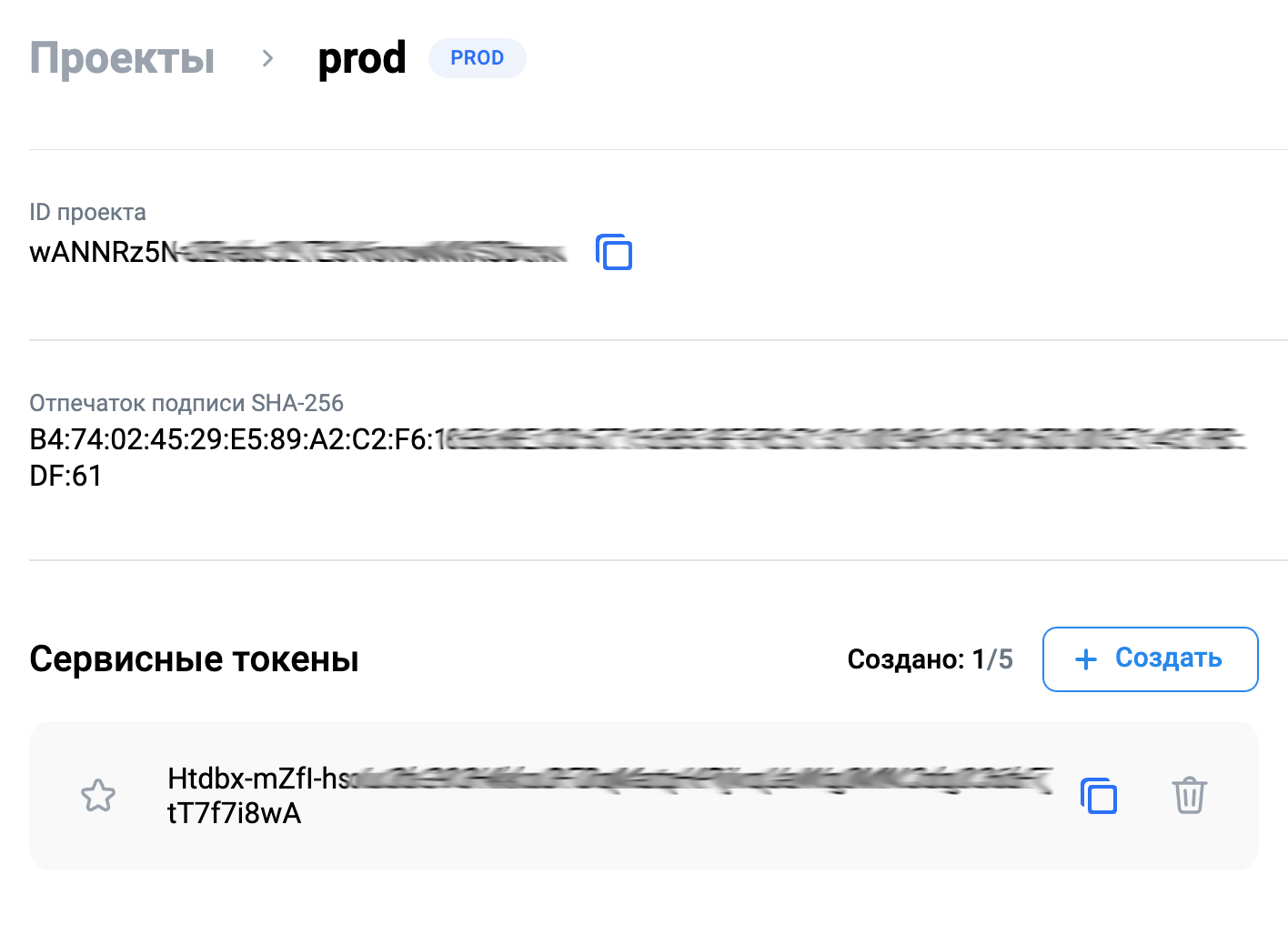
Please note that Push SDK does not support working in multiple processes simultaneously.
If your application uses multiple processes, you must initialize the SDK only in the main process.
If the initialization occurs in a secondary process, it may lead to incorrect push notification behavior.
To get push notifications running, use the GameApplication class extension and add the following code to the onCreate method.
import com.epicgames.ue4.GameApplication;
import ru.rustore.unreal.pushclient.RuStoreUnrealLoggerMode;
import ru.rustore.unreal.pushclient.RuStoreUnrealPushClient;
import ru.rustore.unreal.pushclient.UnrealClientIdType;

public class RuStorePushApplication extends GameApplication {

	private final String PROJECT_ID = "6RUviJhYqgNXDXAIL5wqkAP1Rdnd4JmY";
	private final RuStoreUnrealLoggerMode LOGGER_MODE = RuStoreUnrealLoggerMode.CUSTOM;

	@Override
	public void onCreate() {
		super.onCreate();

		Application application = this;
		RuStoreUnrealPushClient.INSTANCE.init(
            application,
            PROJECT_ID,
			LOGGER_MODE,
			null,
			null
        );
	}
}
application— instance ofApplication;PROJECT_ID— your project ID from RuStore Console;loggerMode— logger, defaults to output inlogcat:RuStoreUnrealLoggerMode.LOGCAT— output inlogcat.RuStoreUnrealLoggerMode.CUSTOM— output to Unreal Engine events.
To replace the GameApplication class with RuStorePushApplication in your project's manifest file, use the Unreal Plugin Language functionality.
<?xml version="1.0" encoding="utf-8"?>
<root xmlns:android="http://schemas.android.com/apk/res/android">

  <prebuildCopies>
    <copyDir src="$S(PluginDir)/Java" dst="$S(BuildDir)/src/com/Plugins/RuStorePush" />
  </prebuildCopies>

  <androidManifestUpdates>
    <addAttribute tag="application" name="android:name" value="com.example.RuStorePushApp.RuStorePushApplication" />
  </androidManifestUpdates>

</root>
Initialise the plugin via the Init method to access the push sdk methods from C++.
FURuStorePushClientConfig config;
config.allowNativeErrorHandling = true;
config.messagingServiceListener = pushMessagingServiceListener;
config.logListener = pushLogListener;

URuStorePushClient::Instance()->Init(сonfig);
All operations with URuStorePushClient are also accessible from Blueprints. Initialization example:

The Init method takes a FURuStorePushClientConfig structure as an input parameter. The structure contains fields:
-
allowNativeErrorHandling— allows error handling in a native SDK. -
messagingServiceListener— class object that implementsIRuStoreMessagingServiceListenerInterface. -
logListener— class object that implementsIRuStoreLogListenerInterface. Must be set ifRuStoreUnrealLoggerMode.CUSTOMis set in the Java initialisation method.
URuStoreMessagingServiceListener::Instance() and URuStoreLogListener::Instance() objects implement IRuStoreMessagingServiceListenerInterface and IRuStoreLogListenerInterface interfaces, respectively.
Using them allows you to handle interface events directly from C++ and Blueprint.
Initialisation of URuStoreMessagingServiceListener and URuStoreLogListener together with URuStorePushClient:

Deinitialization
Calling Init for URuStorePushClient, URuStoreMessagingServiceListener, URuStoreLogListener ties objects to the scene root. If no further work with the objects is needed, run the Dispose method to free memory. The Dispose method call unties the objects from root and securely complete all sent requests.
URuStorePushClient::Instance()->Dispose();
URuStoreMessagingServiceListener::Instance()->Dispose();
URuStoreLogListener::Instance()->Dispose();

Event logging
You can implement your own class for logging events using the IRuStoreLogListenerInterface interface.
class RUSTOREPUSH_API IRuStoreLogListenerInterface
{
    GENERATED_BODY()

public:
    UFUNCTION(BlueprintCallable, BlueprintNativeEvent, Category = "RuStore Log Listener Interface")
    void LogVerboseResponse(int64 requestId, FString& message, FURuStoreError& error);

    UFUNCTION(BlueprintCallable, BlueprintNativeEvent, Category = "RuStore Log Listener Interface")
    void LogDebugResponse(int64 requestId, FString& message, FURuStoreError& error);

    UFUNCTION(BlueprintCallable, BlueprintNativeEvent, Category = "RuStore Log Listener Interface")
    void LogInfoResponse(int64 requestId, FString& message, FURuStoreError& error);

    UFUNCTION(BlueprintCallable, BlueprintNativeEvent, Category = "RuStore Log Listener Interface")
    void LogWarnResponse(int64 requestId, FString& message, FURuStoreError& error);

    UFUNCTION(BlueprintCallable, BlueprintNativeEvent, Category = "RuStore Log Listener Interface")
    void LogErrorResponse(int64 requestId, FString& message, FURuStoreError& error);
};
Interface methods:
LogVerboseResponse— detailed recordings for debugging or analysis.LogDebugResponse— debugging records.LogInfoResponse— data records.LogWarnResponse— cautions.LogErrorResponse— critical errors.
Method Parameters:
requestId— request ID.message— log report.error— error description.
User segments
A segment is a group of users chosen based on specific criteria you set. For instance, it could include users who generate the most revenue or those using older versions of Android. Read more about the segments in MyTracker documentation.
To start working with segments, specify the clientIdType and clientIdValue parameters when initialising the SDK:
import com.epicgames.ue4.GameApplication;
import ru.rustore.unreal.pushclient.RuStoreUnrealLoggerMode;
import ru.rustore.unreal.pushclient.RuStoreUnrealPushClient;
import ru.rustore.unreal.pushclient.UnrealClientIdType;

public class RuStorePushApplication extends GameApplication {

    private final String PROJECT_ID = "6RUviJhYqgNXDXAIL5wqkAP1Rdnd4JmY";
	private final RuStoreUnrealLoggerMode LOGGER_MODE = RuStoreUnrealLoggerMode.CUSTOM;

	private final UnrealClientIdType CLIENT_ID_TYPE = UnrealClientIdType.GAID;
    private final String CLIENT_ID_VALUE = "your_client_id";

    @Override
    public void onCreate() {
        super.onCreate();

        RuStoreUnrealPushClient.INSTANCE.init(
            this,
            PROJECT_ID,
            LOGGER_MODE,
            CLIENT_ID_TYPE,
            CLIENT_ID_VALUE
        );
    }
}
CLIENT_ID_TYPE— ID type:UnrealClientIdType.GAIDis Google's advertising ID.UnrealClientIdType.OAIDis Huawei's advertising ID.
CLIENT_ID_VALUE— ID value.
Push notifications availability check
See SDK Prerequisites for push notification requirements.
To check the listed prerequisites, use the CheckPushAvailability method.
Each
CheckPushAvailability request returns requestId, that is unique within a single application run. Each event returns requestId of the request that triggered the event.
long requestId = URuStorePushClient::Instance()->CheckPushAvailability(
    [](long requestId, TSharedPtr<FUFeatureAvailabilityResult, ESPMode::ThreadSafe> response) {
        // Process response
    },
    [](long requestId, TSharedPtr<FURuStoreError, ESPMode::ThreadSafe> error) {
        // Process error
    }
);

TheSuccess callback returns the FURuStoreFeatureAvailabilityResult structure in the Response parameter.
USTRUCT(BlueprintType)
struct RUSTORECORE_API FURuStoreFeatureAvailabilityResult
{
    GENERATED_USTRUCT_BODY()

    FURuStoreFeatureAvailabilityResult()
    {
        isAvailable = false;
    }

    UPROPERTY(BlueprintReadWrite)
    bool isAvailable;

    UPROPERTY(BlueprintReadWrite)
    FURuStoreError cause;
};
isAvailable— SDK prerequisites.cause— error info. All possible errorscauseare described in Error Handling.
The Failure callback returns the FURuStoreError structure with error information in the Error parameter. The error structure is described in Error Handling.
Push token methods
Getting user push token
The method will create and return a new push token if the user does not have one.
GetToken, method to get the user's current push token.
Each
GetToken request returns requestId, that is unique within a single application run. Each event returns requestId of the request that triggered the event.
long requestId = URuStorePushClient::Instance()->GetToken(
    [](long requestId, FString response) {
        // Process response
    },
    [](long requestId, TSharedPtr<FURuStoreError, ESPMode::ThreadSafe> error) {
        // Process error
    }
);

TheSuccess callback returns a token with FString structure in the Response parameter.
response— current push token.
The Failure callback returns the FURuStoreError structure with error information in the Error parameter. The error structure is described in Error Handling.
Deleting user push token
After the library has been initialised, the user's current push token can be removed using the DeleteToken method.
Each
DeleteToken request returns requestId, that is unique within a single application run. Each event returns requestId of the request that triggered the event.
long requestId = URuStorePushClient::Instance()->DeleteToken(
    [](long requestId) {
        // Process success
    },
    [](long requestId, TSharedPtr<FURuStoreError, ESPMode::ThreadSafe> error) {
        // Process error
    }
);

The Success callback indicates that the operation was successful.
The Failure callback returns the FURuStoreError structure with error information in the Error parameter. The error structure is described in Error Handling.
Push topic methods
Push topic subscription
Once the library is initialised, you can use the SubscribeToTopic method to subscribe to a topic.
Each
SubscribeToTopic request returns requestId, that is unique within a single application run. Each event returns requestId of the request that triggered the event.
long requestId = URuStorePushClient::Instance()->SubscribeToTopic(
    topicName,
    [](long requestId) {
      // Process error
    },
    [](long requestId, TSharedPtr<FURuStoreError, ESPMode::ThreadSafe> error) {
      // Process error
    }
);

The Success callback indicates that the operation was successful.
The Failure callback returns the FURuStoreError structure with error information in the Error parameter. The error structure is described in Error Handling.
Unsubscribe from push topic
Once the library is initialised, you can use theUnsubscribeToTopic method to unsubscribe from the topic.
long responseId = URuStorePushClient::Instance()->UnsubscribeFromTopic(
    [](long responseId) {
        // Process success
    },
    [](long responseId, TSharedPtr<FURuStoreError, ESPMode::ThreadSafe> error) {
        // Process error
    }
);

The Success callback indicates that the operation was successful.
The Failure callback returns the FURuStoreError structure with error information in the Error parameter. The error structure is described in Error Handling.
Retrieving data from RuStore SDK
The URuStoreMessagingServiceListener::Instance() object implements IRuStoreMessagingServiceListenerInterface interface. To get the URuStoreMessagingServiceListener running, see Initialisation.
class RUSTOREPUSH_API IRuStoreMessagingServiceListenerInterface
{
    GENERATED_BODY()

public:
    UFUNCTION(BlueprintCallable, BlueprintNativeEvent, Category = "RuStore Messaging Service Listener Interface")
    void NewTokenResponse(int64 requestId, FString& token);

    UFUNCTION(BlueprintCallable, BlueprintNativeEvent, Category = "RuStore Messaging Service Listener Interface")
    void MessageReceivedResponse(int64 requestId, FURuStoreRemoteMessage& message);

    UFUNCTION(BlueprintCallable, BlueprintNativeEvent, Category = "RuStore Messaging Service Listener Interface")
    void DeletedMessagesResponse(int64 requestId);

    UFUNCTION(BlueprintCallable, BlueprintNativeEvent, Category = "RuStore Messaging Service Listener Interface")
    void ErrorResponse(int64 requestId, TArray<FURuStoreError>& errors);
};
| Method name | Description |
|---|---|
| Called when a new push token is received. After this method is called, your app will be responsible for delivering the new push token to its server. This method returns the value of the new token. |
| Called when a new push token is received
< p/>
If there is data in |
| Called when one or more push notifications fail to reach the device. For example, if the notification's lifetime has expired before delivery. < p/> When calling this method, it is recommended that you synchronise with your server to avoid missing data. |
| Called when an error occurs during initialisation. It returns an array of objects with errors. < p/> Possible errors:
|
Notification structure
USTRUCT(BlueprintType)
struct RUSTOREPUSH_API FURuStoreRemoteMessage
{
    GENERATED_USTRUCT_BODY()

public:
    UPROPERTY()
    FString collapseKey;

    UPROPERTY()
    TMap<FString, FString> data;

    UPROPERTY()
    FString messageId;

    UPROPERTY()
    FURuStoreNotification notification;

    UPROPERTY()
    int priority;

    char* rawData;

    UPROPERTY()
    int ttl;
};
-
collapseKey- notification group ID (currently disregarded). -
.data— dictionary to which additional notification data can be passed. -
messageId— unique message ID. It corresponds to an ID of each message. -
notification— notification object. -
priority— returns the priority value (currently disregarded).The following options are now available:
0—UNKNOWN.1—HIGH.2—NORMAL.
< p/>
-
rawData— dictionary ofdataas an array of bytes. -
ttl— push notification lifetime ofInttype in seconds.
USTRUCT(Blueprintable)
struct RUSTOREPUSH_API FURuStoreNotification
{
    GENERATED_USTRUCT_BODY()

public:
    FURuStoreNotification()
    {
        title = "0";
        body = "0";
        channelId = "0";
        imageUrl = "0";
        color = "0";
        icon = "0";
        clickAction = "0";
    }

    UPROPERTY()
    FString title;

    UPROPERTY()
    FString body;

    UPROPERTY()
    FString channelId;

    UPROPERTY()
    FString imageUrl;

    UPROPERTY()
    FString color;

    UPROPERTY()
    FString icon;

    UPROPERTY()
    FString clickAction;
};
-
title— notification header. -
body— notification body -
channelId— option to create the channel to which notification will be sent. For Android 8.0 or later. -
.imageUrl— direct link to an image to be inserted into the notification. The size of the image must not exceed 1 Mbyte . -
color— notification colour in HEX format, string. For example,#0077FF. -
icon— notification icon fromres/drawablein a string format that matches the resource name. < p/> For example,res/drawablehas an iconsmall_icon.xml, which is accessible in code viaR.drawable.small_icon. For the icon to be displayed in the notification, the server must specify aiconvalue ofsmall_icon. < p/> -
clickAction—intent action, with which activity is opened when a notification is pressed on..
Creating notification channel
The channel to which the message is sent will be given the following priority:
-
If the push notification has a
channelIdfield, RuStore SDK will send the notification to the specified channel. Your app must create this channel in advance. -
If there is no
channelIdfield in the push notification, but your app has specified a parameter with a channel inAndroidManifest.xml, the specified channel will be used. Your app must create this channel in advance. -
If there is no
channelIdfield in the push notification and the default channel is not set inAndroidManifest.xml, RuStore SDK will create a channel and send the notification to it. From now on, all notifications without an explicit channel will be sent to that channel..
Tap notification to open activity
By default, if you click on a notification, RuStore SDK will open an activity with action android.intent.action.MAIN.
If there is a clickAction field, RuStore SDK will open an activity that falls under the Intent filter with the specified action.
Add the string <category android:name="android.intent.category.DEFAULT" /> in the application manifest in the corresponding <intent-filter> element of the activity.
This is to open the activity by default when you click on the notification.
The activity will not open without this line in RuStore SDK.
You will need to clear intent when navigating to the application. This allows the SDK to open game activity after a push notification without reloading the game.
To do this, the plugin will add an additional activity of com.Plugins.RuStorePush.RuStorePushActivity to the manifest.
RuStorePushActivity will clear the intent and launch com.epicgames.ue4.GameActivity or com.epicgames.unreal.GameActivity depending on Unreal Engine version.
<addElements tag="application">
	<activity android:name="com.Plugins.RuStorePush.RuStorePushActivity" android:exported="true" android:label="@string/app_name" android:theme="@android:style/Theme.Black.NoTitleBar.Fullscreen" android:configChanges="mcc|mnc|uiMode|density|screenSize|smallestScreenSize|screenLayout|orientation|keyboardHidden|keyboard|navigation|touchscreen|locale|fontScale|layoutDirection" android:resizeableActivity="false" android:launchMode="singleTask" android:screenOrientation="sensor" android:debuggable="false">
		<intent-filter>
			<action android:name="android.intent.action.MAIN" />
			<category android:name="android.intent.category.LAUNCHER" />
			<category android:name="android.intent.category.DEFAULT" />
		</intent-filter>
	</activity>
</addElements>
import android.content.Intent;
import android.os.Bundle;
import androidx.appcompat.app.AppCompatActivity;
import com.Plugins.RuStorePush.RuStoreLaunchHandler;

public class RuStorePushActivity extends AppCompatActivity {

    private static final String ue4 = "com.epicgames.ue4.GameActivity";
    private static final String ue5 = "com.epicgames.unreal.GameActivity";

	@Override
    protected void onCreate(Bundle savedInstanceState) {
        super.onCreate(savedInstanceState);

        Class<?> gameActivityClass = null;
        try {
            gameActivityClass = Class.forName(ue4);
        } catch (ClassNotFoundException ex1)
        {
            try {
                gameActivityClass = Class.forName(ue5);
            } catch (ClassNotFoundException ex2) { }
        }

        if (gameActivityClass != null)
        {
            RuStoreLaunchHandler.OnNewIntent(getIntent());

            Intent newIntent = new Intent(this, gameActivityClass);
            startActivity(newIntent);
        }

        finish();
    }
}
Errors processing
It is not recommended to display the error to the user if you get Failure in response. Showing an error can negatively impact the user experience.
USTRUCT(BlueprintType)
struct RUSTORECORE_API FURuStoreError
{
    GENERATED_USTRUCT_BODY()

    FURuStoreError()
    {
        name = "";
        description = "";
    }

    UPROPERTY(BlueprintReadOnly)
    FString name;

    UPROPERTY(BlueprintReadOnly)
    FString description;
};
name— error name. ContainssimpleNameof the error class.description— error description.
Error Classes:
-
RuStoreNotInstalledException— RuStore is not installed on the user's device. -
RuStoreOutdatedException— RuStore app on the user's device does not support push notifications. -
RuStoreUserUnauthorizedException— user is not authorized in RuStore. -
RuStoreFeatureUnavailableException— RuStore is not allowed to work in background. -
RuStoreException— basic RuStore error from which other errors are inherited.
If you passed the allowNativeErrorHandling == true parameter when initialising the SDK, in case of an error:
-
The corresponding
onFailurehandler will be called. -
The error will be passed to the
resolveForPushmethod of the native SDK. This is used to show the error dialogue to the user.
To disable passing the error to the native SDK, set the false value for the AllowNativeErrorHandling property.
URuStorePushClient::Instance()->SetAllowNativeErrorHandling(false);