1.0.0
General
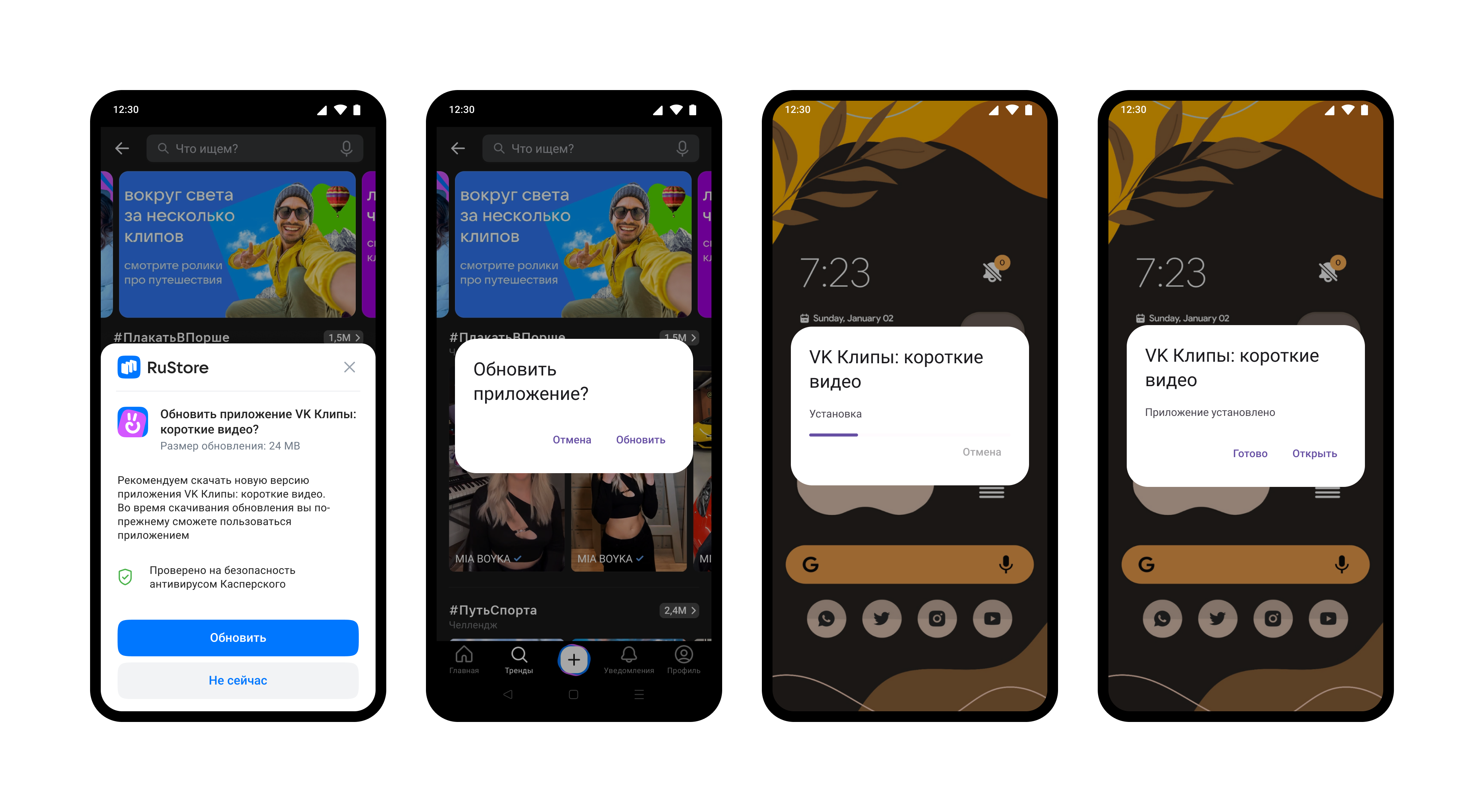
RuStore In-app updates SDK supports the current version of the application on the user's device. This helps the user see updates, evaluate performance improvements and the result of bug fixes.
User scenario example
Use RuStore In-app updates SDK to implement various update methods. Currently supported: delayed, silent (without UI from RuStore) and forced update.
Check out the sample application to learn how to properly integrate the update SDK.
Prerequisites
For the RuStore In-app updates SDK to work, the following conditions must be met.
- App uploaded to RuStore Console.
- App passed moderation (you don't have to publish the app).
- Test build signature (for example:
debug) of the app must match the signature of the app build that was uploaded to the console and passed moderation (for example,release).
- Android 8.0 or later.
- RuStore app version on the device is up-to-date.
- User is authorized in RuStore.
- RuStore app is allowed to install applications.
Connecting to the project
To connect, follow these steps.
- Copy the contents of the
Pluginsfolder from the official RuStore repository on gitflic to thePluginsfolder inside your project. - Restart Unreal Engine.
- In the list of plugins (Edit > Plugins > Project > Mobile) check the plugins RuStoreAppUpdate and RuStoreCore.
- Connect the
RuStoreCoreandRuStoreAppUpdatemodules in theYourProject.Build.csfile in thePublicDependencyModuleNameslist. - In the project settings (Edit > Project Settings > Android) set the
Minimum SDK Versionparameter to at least24and theTarget SDK Versionparameter to at least31.
Create update manager
Before calling library methods, you must create an update manager.
Initialization
Before calling library methods, you must initialize it.
URuStoreAppUpdateManager::Instance()->Init();
All operations on the manager object are also available from Blueprints. Below is an example of initialization.
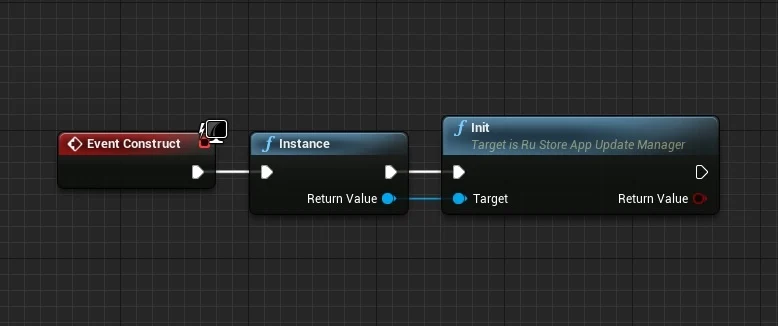
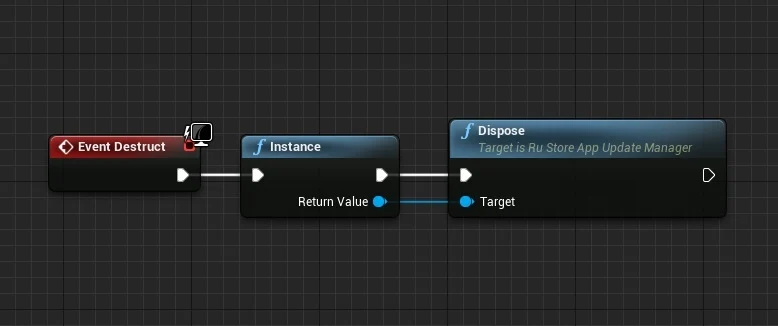
The Init call binds the object to the scene root, and if further work with the object is no longer planned, the Dispose method must be executed to free up memory. Calling the Dispose method will unbind the object from the root and safely terminate all requests sent.
###Deinitialization
URuStoreAppUpdateManager::Instance()->Dispose();
Initialization check
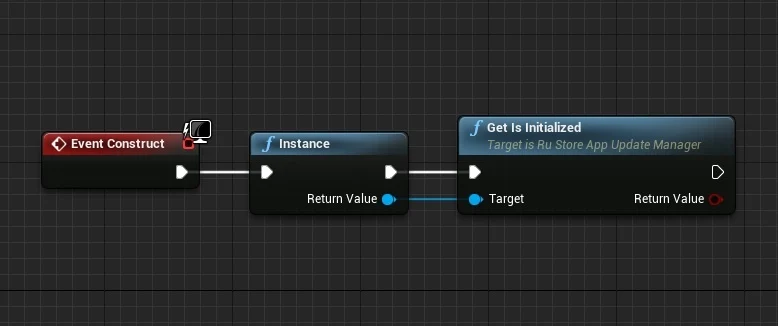
If you need to check whether a library has been initialized, use the GetIsInitialized method. The method returns a value of type bool:
true- if the library is initialized;false- ifInithas not yet been called.
bool bIsInitialized = URuStoreAppUpdateManager::Instance()->GetIsInitialized();
Check for updates
Before requesting an update, check to see if an update is available for your application. To check for updates, call the methodGetAppUpdateInfo. When calling this method, the following conditions are checked.
- The current version of RuStore is installed on the user's device.
- The user and the app are not banned in RuStore.
- RuStore app is allowed to install applications.
- User is authorized in RuStore.
FURuStoreAppUpdateInfo object, which will contain information about the need for an update. Request this object in advance and cache it to prompt the user to start downloading the update without delay and at the user's convenience.
Each GetAppUpdateInfo request returns requestId, that is unique within a single application run. Each event returns requestId of the request that triggered the event.
long requestId = GetAppUpdateInfo(
    [](long requestId, TSharedPtr<FURuStoreAppUpdateInfo, ESPMode::ThreadSafe> response) {
        // Process response
    },
    [](long requestId, TSharedPtr<FURuStoreError, ESPMode::ThreadSafe> error) {
        // Process error
    }
);
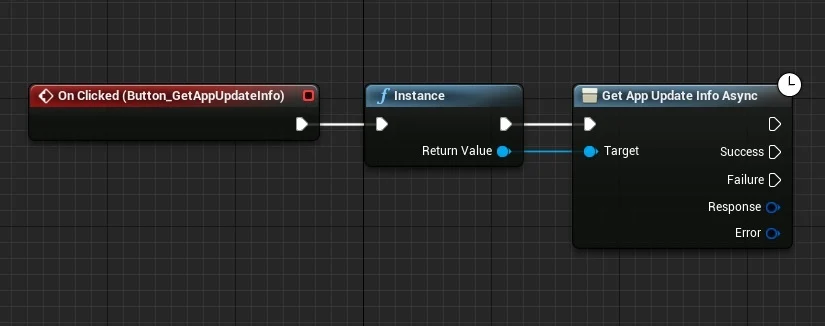
The Success callback notification returns a FURuStoreAppUpdateInfo structure in the Response parameter. The structure contains a set of parameters necessary to determine whether an update is available.
USTRUCT(BlueprintType)
struct RUSTOREAPPUPDATE_API FURuStoreAppUpdateInfo
{
    GENERATED_USTRUCT_BODY()

    FURuStoreAppUpdateInfo()
    {
        updateAvailability = EURuStoreUpdateAvailability::UNKNOWN;
        installStatus = EURuStoreInstallStatus::UNKNOWN;
        availableVersionCode = 0;
    }

    UPROPERTY(BlueprintReadOnly)
    EURuStoreUpdateAvailability updateAvailability;

    UPROPERTY(BlueprintReadOnly)
    EURuStoreInstallStatus installStatus;

    UPROPERTY(BlueprintReadOnly)
    int64 availableVersionCode;
};
-
updateAvailability— update availability:UNKNOWN (uint8 = 0)— by default;UPDATE_NOT_AVAILABLE (uint8 = 1)— no update needed;UPDATE_AVAILABLE (uint8 = 2)— an update is required to be downloaded or an update has already been downloaded to the user's device;DEVELOPER_TRIGGERED_UPDATE_IN_PROGRESS (uint8 = 3)— the update is already downloading or installation has already started.
-
installStatus— update installation status if the user is already installing the update at the current time:UNKNOWN (uint8 = 0)— by default;DOWNLOADED (uint8 = 1)— downloaded;DOWNLOADING (uint8 = 2)— downloading;FAILED (uint8 = 3)— error;PENDING (uint8 = 5)— in anticipation.
-
availableVersionCode— update version code.
An update download can only be started if the updateAvailability field contains the valueUPDATE_AVAILABLE.
Failure returns structure with error information. The error structure is described in the Error Handling section.
Download and install updates
Using listener
After confirming the availability of starting the update process, you can receive the update download status in the OnStateUpdatedInstanceEvent event of the URuStoreAppUpdateManager object.
DECLARE_DYNAMIC_MULTICAST_DELEGATE_TwoParams(FRuStoreOnStateUpdatedInstanceDelegate, int64, listenerId, FURuStoreInstallState, state);

UPROPERTY(BlueprintAssignable, Category = "RuStore AppUpdate Manager")
FRuStoreOnStateUpdatedInstanceDelegate OnStateUpdatedInstanceEvent;
FScriptDelegate Delegate;
Delegate.BindUFunction(YourUObjectPtr, FName("YourCallbackMethod"));
URuStoreAppUpdateManager::Instance()->OnStateUpdatedInstanceEvent.Add(Delegate);
UFUNCTION()
void YourCallbackMethod(int64 listenerId, FURuStoreInstallState state) {
    // Process callback
}
Subscribing to a listener event from Blueprint.
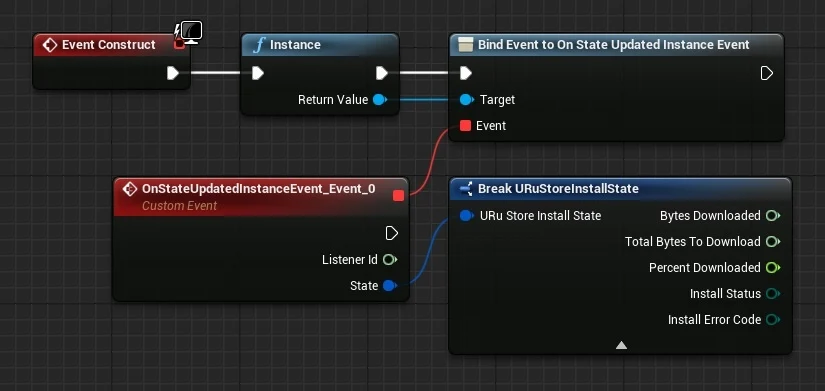
The OnStateUpdatedInstanceEvent event returns a FURuStoreInstallState object in the state parameter describing the current download status. The FURuStoreInstallState structure is described in the Checking update download status section.
Listener interface
The URuStoreAppUpdateManager class implements a standard listener. You can create your own listener class using the IRuStoreInstallStateUpdateListenerInterface interface.
UINTERFACE(Blueprintable)
class RUSTOREAPPUPDATE_API URuStoreInstallStateUpdateListenerInterface : public UInterface
{
    GENERATED_BODY()
};

class IRuStoreInstallStateUpdateListenerInterface
{
    GENERATED_BODY()

public:
    UFUNCTION(BlueprintCallable, BlueprintNativeEvent, Category = "RuStore InstallStateUpdate Listener Interface")
    void OnStateUpdated(int64 listenerId, FURuStoreInstallState& state);
};
The OnStateUpdated event returns an FURuStoreInstallState object in the state parameter describing the current download status. The FURuStoreInstallState structure is described in the Checking update download status section.
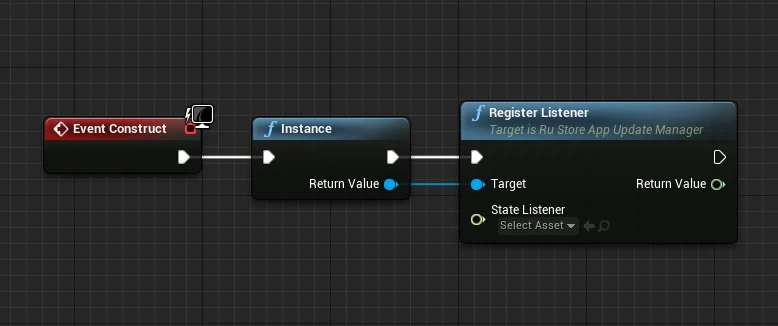
Calling the RegisterListener method registers a listener.
For the standard URuStoreAppUpdateManager listener, a call to RegisterListener is not required.
int64 listenerId = URuStoreAppUpdateManager::Instance()->RegisterListener(YourListenerPtr);
YourListenerPtr is a pointer to an object of a class that implements the IRuStoreInstallStateUpdateListenerInterface interface.
Check update status
The FURuStoreInstallState structure describes the current download status.
USTRUCT(BlueprintType)
struct RUSTOREAPPUPDATE_API FURuStoreInstallState
{
    GENERATED_USTRUCT_BODY()

    FURuStoreInstallState()
    {
        bytesDownloaded = 0;
        totalBytesToDownload = 0;
        percentDownloaded = 0;
        installStatus = EURuStoreInstallStatus::UNKNOWN;
        installErrorCode = EURuStoreInstallErrorCode::ERROR_UNKNOWN;
    }

    UPROPERTY(BlueprintReadWrite)
    int64 bytesDownloaded;

    UPROPERTY(BlueprintReadWrite)
    int64 totalBytesToDownload;

    UPROPERTY(BlueprintReadWrite)
    float percentDownloaded;

    UPROPERTY(BlueprintReadWrite)
    EURuStoreInstallStatus installStatus;

    UPROPERTY(BlueprintReadWrite)
    EURuStoreInstallErrorCode installErrorCode;
};
bytesDownloaded- number of bytes downloaded;totalBytesToDownload- the total number of bytes that need to be downloaded;percentDownloaded- percentage of update download progress;installStatus— update installation status if the user is already installing the update at the current time:UNKNOWN (int == 0)- default status.DOWNLOADED (int == 1)- downloaded.DOWNLOADING (int == 2)- loading.FAILED (int == 3)is an error.PENDING (int == 5)- pending.
The update SDK does not have a special status for the situation when the user has canceled the update download. If the user aborted the update during the download phase, installStatus returns the original status UNKNOWN (0) with a Download button.
If the user has already downloaded the update, but canceled the installation, then installStatus will return the value DOWNLOADED (1).
Let's consider the following options.
- The user started downloading the update, but canceled the download - in this case:
updateAvailability-UPDATE_AVAILABLE(2);installStatus-UNKNOWN(0).
- The user downloaded the update file, but did not install it - in this case:
updateAvailability-UPDATE_AVAILABLE(2);installStatus-DOWNLOADED(1).
installErrorCode- error code during download. Error codes are described in the Error Handling section.
Delete listener
If you no longer need the listener, use the UnregisterListener method to remove the listener, passing the previously registered listener to the method. UnregisterListener must be called on all listeners before the application exits.
For the standard URuStoreAppUpdateManager listener, calling UnregisterListener when the application is terminated is not required.
bool bIsDone = URuStoreAppUpdateManager::Instance()->UnregisterListener(YourListenerPtr);
YourListenerPtr is a pointer to an object of a class that implements the IRuStoreInstallStateUpdateListenerInterface interface.
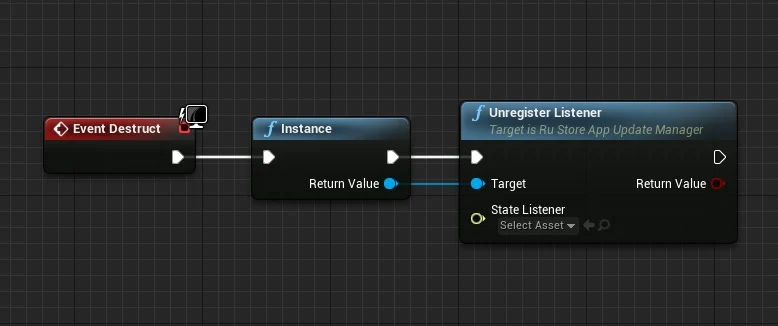
If you implement your own listener, you can also unregister the standard listener to save resources.
auto instance = URuStoreAppUpdateManager::Instance();
bool bIsDone = instance->UnregisterListener(instance);
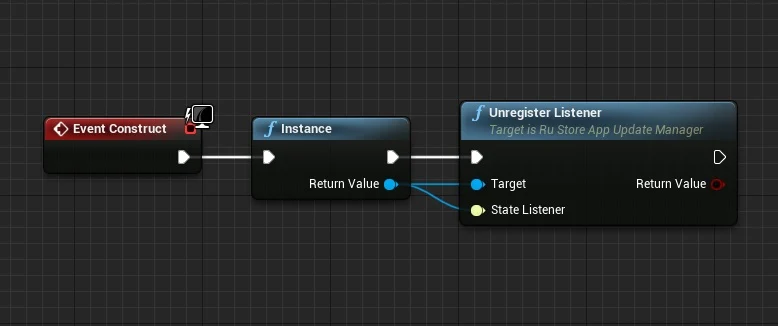
Start downloading update
Delayed update
Description of deferred update scenario
Update with UI from RuStore
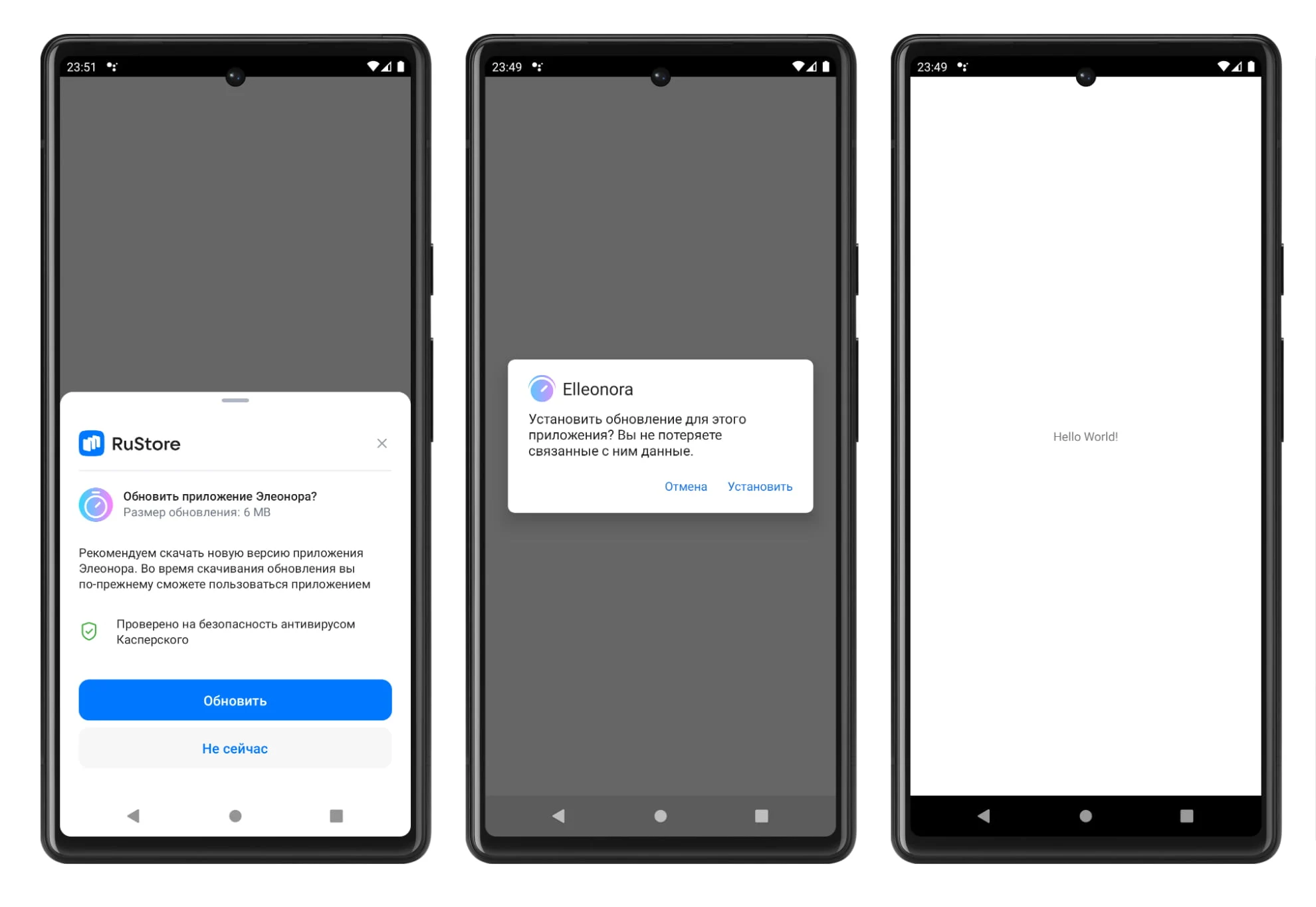
- The user will be shown a dialog with the RuStore UI to confirm the update.
- When you click the Update button, a dialog box will appear to confirm the installation of the update.
- Once the installation is complete, the application will close.
Running the update script
To start downloading an application update, use the StartUpdateFlow method.
The FURuStoreAppUpdateInfo object becomes invalid after a single use. To call the StartUpdateFlow method again, request FURuStoreAppUpdateInfo again using the GetAppUpdateInfo method.
See the Checking for updates section.
StartUpdateFlow request returns requestId, that is unique within a single application run. Each event returns requestId of the request that triggered the event.
EURuStoreAppUpdateOptions appUpdateOptions = EURuStoreAppUpdateOptions::DELAYED;
long requestId = StartUpdateFlow(
    appUpdateOptions,
    [](long requestId, EURuStoreUpdateFlowResult response) {
        // Process response
    },
    [](long requestId, TSharedPtr<FURuStoreError, ESPMode::ThreadSafe> error) {
        // Process error
    }
);
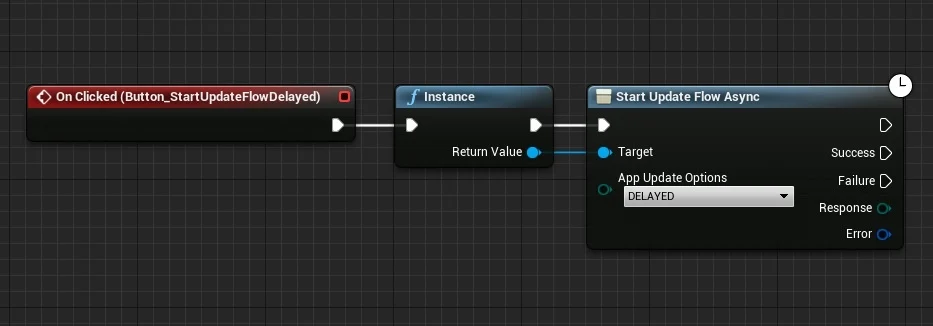
appUpdateOptions- type of update procedure:DELAYED- delayed update. The user will be shown a dialog with the RuStore UI to confirm downloading the update.SILENT- silent update. The update will be downloaded in the background.IMMEDIATE- forced update. Application use will be blocked until the update is installed.
The Success callback notification returns the EURuStoreUpdateFlowResult value in the Response parameter:
EURuStoreUpdateFlowResult::RESULT_OK- the user confirmed downloading the update.EURuStoreUpdateFlowResult::RESULT_CANCELED- the user refused to download the update.
The Failure callback notification returns a FURuStoreError structure with information about the error in the Error parameter. The structure of the FURuStoreError error is described in the Error Handling section.
After calling the StartUpdateFlow method, the update download status can be monitored in the OnStateUpdatedInstanceEvent event.
After receiving the EURuStoreInstallStatus::DOWNLOADED status in the installStatus field of the FURuStoreInstallState object, the update installation method must be called.
Forced update
Description of the forced update scenario
Update with UI from RuStore

- The user will be shown a full-screen dialog with the RuStore UI to confirm the update. Application use will be blocked until the update is installed.
- When you click the Update button, a dialog box will appear to confirm the installation of the update.
- Next, when you click on the Install button, a full-screen dialog about installing a new version of the application will appear.
- Once the installation is complete, the application will restart.
The application will be restarted if the Rustore version is greater than or equal to 1.37. If the version of Rustore is lower, the application will close to install the update and will not be reopened when the update is completed.
Run update script
After receiving FURuStoreAppUpdateInfo you can check whether a force update is available.
bool bIsAvailable = URuStoreAppUpdateManager::Instance()->CheckIsImmediateUpdateAllowed();
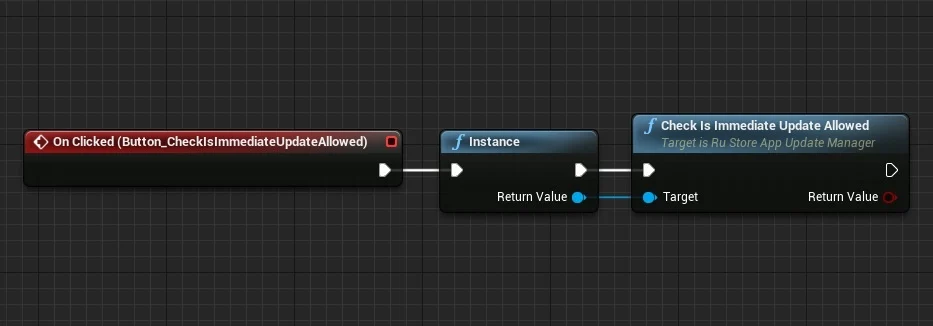
The result of the CheckIsImmediateUpdateAllowed method is recommended to be used to decide whether to run a forced update, but this result does not affect the ability to run the script. The need to run the update script may occur according to your internal logic.
To start downloading an application update, use the StartUpdateFlow method.
The FURuStoreAppUpdateInfo object becomes invalid after a single use. To call the StartUpdateFlow method again, request FURuStoreAppUpdateInfo again using the GetAppUpdateInfo method.
See the Checking for updates section.
StartUpdateFlow request returns requestId, that is unique within a single application run. Each event returns requestId of the request that triggered the event.
EURuStoreAppUpdateOptions appUpdateOptions = EURuStoreAppUpdateOptions::IMMEDIATE;
long requestId = StartUpdateFlow(
    appUpdateOptions,
    [](long requestId, EURuStoreUpdateFlowResult response) {
        // Process response
    },
    [](long requestId, TSharedPtr<FURuStoreError, ESPMode::ThreadSafe> error) {
        // Process error
    }
);
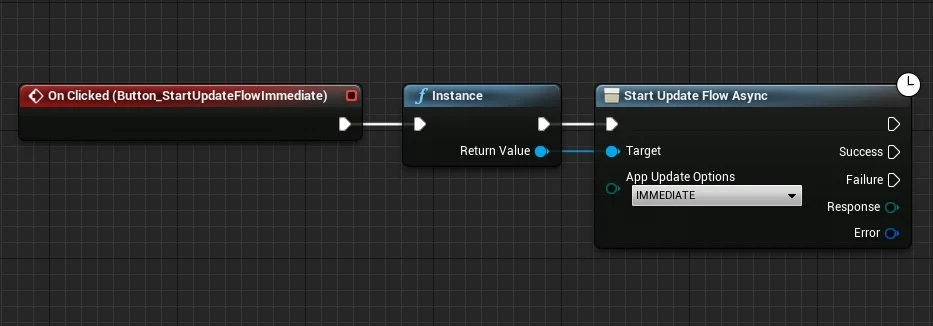
appUpdateOptions- type of update procedure:DELAYED- delayed update. The user will be shown a dialog with the RuStore UI to confirm downloading the update.SILENT- silent update. The update will be downloaded in the background.IMMEDIATE- forced update. Application use will be blocked until the update is installed.
The Success callback notification returns the EURuStoreUpdateFlowResult value in the Response parameter:
EURuStoreUpdateFlowResult::RESULT_OK- the update is completed, the code may not be received because the application is terminated at the time of the update.EURuStoreUpdateFlowResult::RESULT_CANCELED- the flow was interrupted by the user or an error occurred. When you receive this code, you are expected to exit the application.EURuStoreUpdateFlowResult::ACTIVITY_NOT_FOUND- RuStore is not installed, or a version is installed that does not support forced updating (RuStore versionCode<191).
The Failure callback notification returns a FURuStoreError structure with information about the error in the Error parameter. The structure of the FURuStoreError error is described in the Error Handling section.
If the update is successful, no further action is required.
Silent update
Description of silent update scenario
Update without UI from RuStore
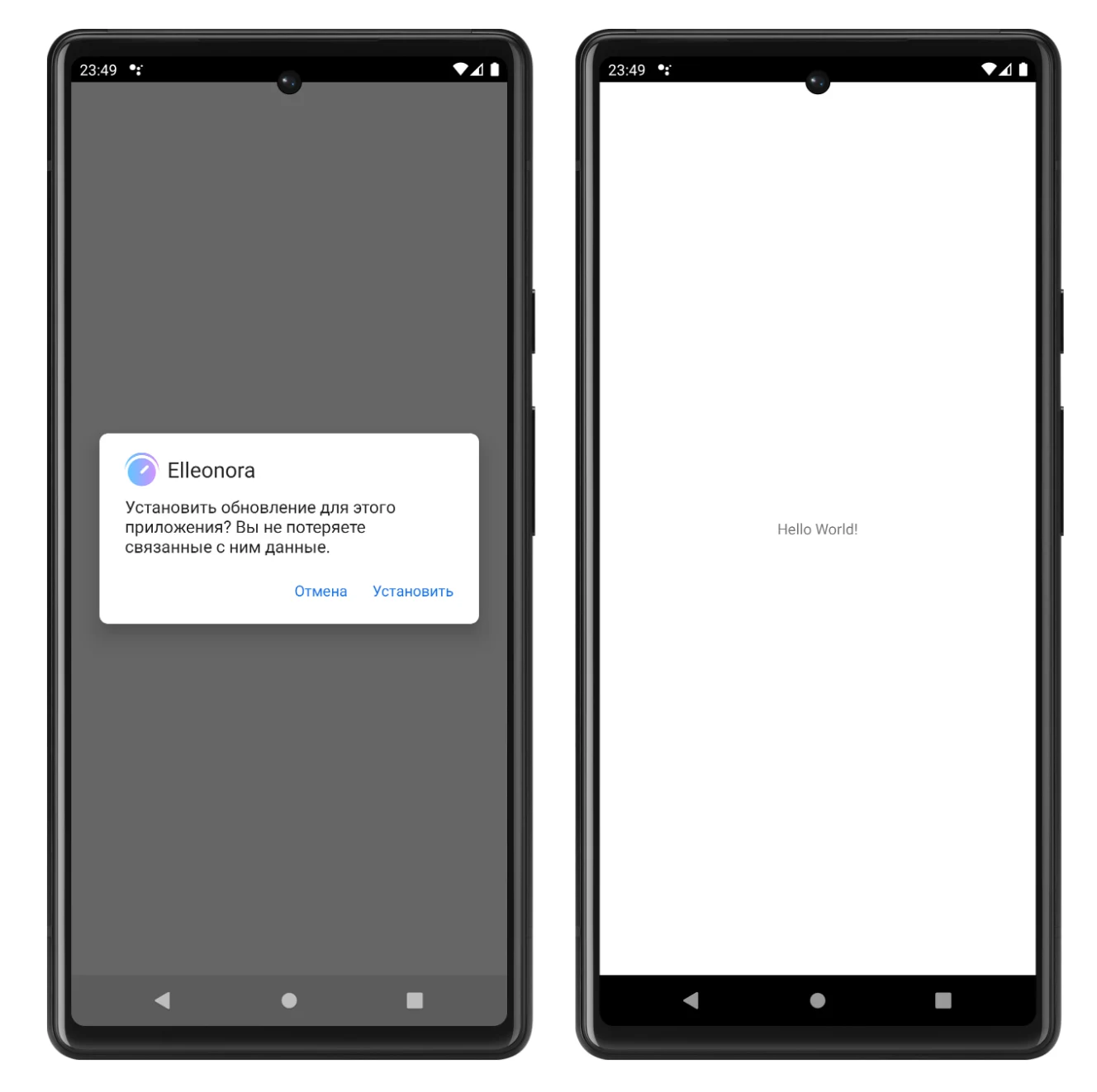
- The user will be shown a dialog box to confirm the installation of the update (the update will be downloaded in the background).
- Once the installation is complete, the application will close.
Running the update script
To start downloading an application update, use the StartUpdateFlow method.
The FURuStoreAppUpdateInfo object becomes invalid after a single use. To call the StartUpdateFlow method again, request FURuStoreAppUpdateInfo again using the GetAppUpdateInfo method.
See the Checking for updates section.
StartUpdateFlow request returns requestId, that is unique within a single application run. Each event returns requestId of the request that triggered the event.
EURuStoreAppUpdateOptions appUpdateOptions = EURuStoreAppUpdateOptions::SILENT;
long requestId = StartUpdateFlow(
    appUpdateOptions,
    [](long requestId, EURuStoreUpdateFlowResult response) {
        // Process response
    },
    [](long requestId, TSharedPtr<FURuStoreError, ESPMode::ThreadSafe> error) {
        // Process error
    }
);
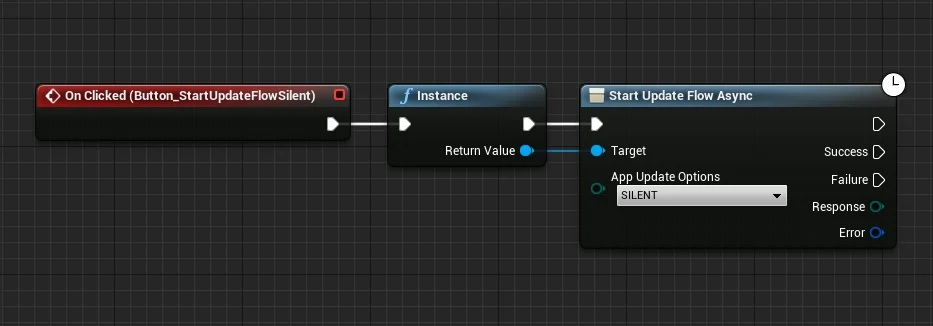
appUpdateOptions- type of update procedure:DELAYED- delayed update. The user will be shown a dialog with the RuStore UI to confirm downloading the update.SILENT- silent update. The update will be downloaded in the background.IMMEDIATE- forced update. Application use will be blocked until the update is installed.
The Success callback notification returns the EURuStoreUpdateFlowResult value in the Response parameter:
EURuStoreUpdateFlowResult::RESULT_OK- the update download task has been registered.
The Failure callback notification returns a FURuStoreError structure with information about the error in the Error parameter. The structure of the FURuStoreError error is described in the Error Handling section.
After calling the StartUpdateFlow method, the update download status can be monitored in the OnStateUpdatedInstanceEvent event.
After receiving the EURuStoreInstallStatus::DOWNLOADED status in the installStatus field of the FURuStoreInstallState object, the update installation method must be called.
For a silent update, it is recommended to implement your own interface.
Update installation
It is recommended to notify the user that the update is ready for installation.
To start the update installation, use the CompleteUpdate method. The update occurs through the native Android tool. If the update is successful, the application will close.
requestId = CompleteUpdate(
    [](long requestId, TSharedPtr<FURuStoreError, ESPMode::ThreadSafe> error) {
        // Process error
    }
);
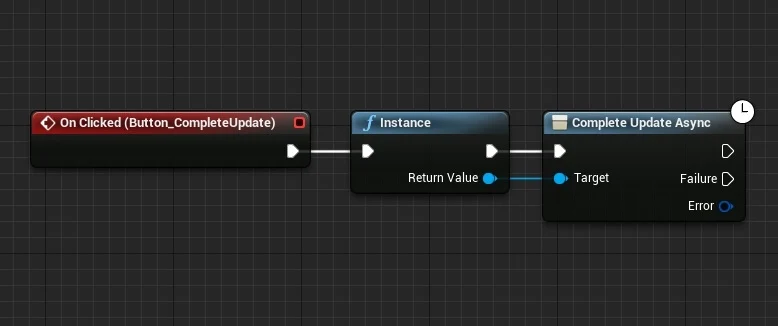
The Failure callback notification returns a FURuStoreError structure with information about the error in the Error parameter. The structure of the FURuStoreError error is described in the Error Handling section.
Errors processing
It is not recommended to display the error to the user yourself if you get onFailure in response. It can negatively affect the user experience.
USTRUCT(BlueprintType)
struct RUSTORECORE_API FURuStoreError
{
	GENERATED_USTRUCT_BODY()

	FURuStoreError()
	{
		name = "";
		description = "";
	}

	UPROPERTY(BlueprintReadOnly)
	FString name;

	UPROPERTY(BlueprintReadOnly)
	FString description;
};
name-simpleNameof the error class.description— description of the error.
Possible errors
RuStoreNotInstalledException— RuStore is not installed on the user's device;RuStoreOutdatedException— RuStore version installed on the user's device does not support this SDK;RuStoreUserUnauthorizedException— user is not authorized in RuStore;RuStoreException— basic RuStore error from which other errors are inherited;RuStoreInstallException(public val code: Int)— download and installation error.ERROR_UNKNOWN(Int = 4001)— unknown error.ERROR_DOWNLOAD(Int = 4002)— error while downloading.ERROR_BLOCKED(Int = 4003)— installation blocked by system.ERROR_INVALID_APK(Int = 4004)— invalid update APK.ERROR_CONFLICT(Int = 4005)— conflict with the current app version.ERROR_STORAGE(Int = 4006)— insufficient device storage.ERROR_INCOMPATIBLE(Int = 4007)— incompatible with device.ERROR_APP_NOT_OWNED(Int = 4008)— application not purchased.ERROR_INTERNAL_ERROR(Int = 4009)— internal error.ERROR_ABORTED(Int = 4010)— user refused to install the update.ERROR_APK_NOT_FOUND(Int = 4011)— APK for installation not found.ERROR_EXTERNAL_SOURCE_DENIED(Int = 4012)— update prohibited. For example, the first method responses that an update is not available, but the user calls the second method.ERROR_ACTIVITY_SEND_INTENT(Int = 9901)— error while sending intent for opening an activity.ERROR_ACTIVITY_UNKNOWN(Int = 9902)— unknown error on activity opening.