1.0.0
General
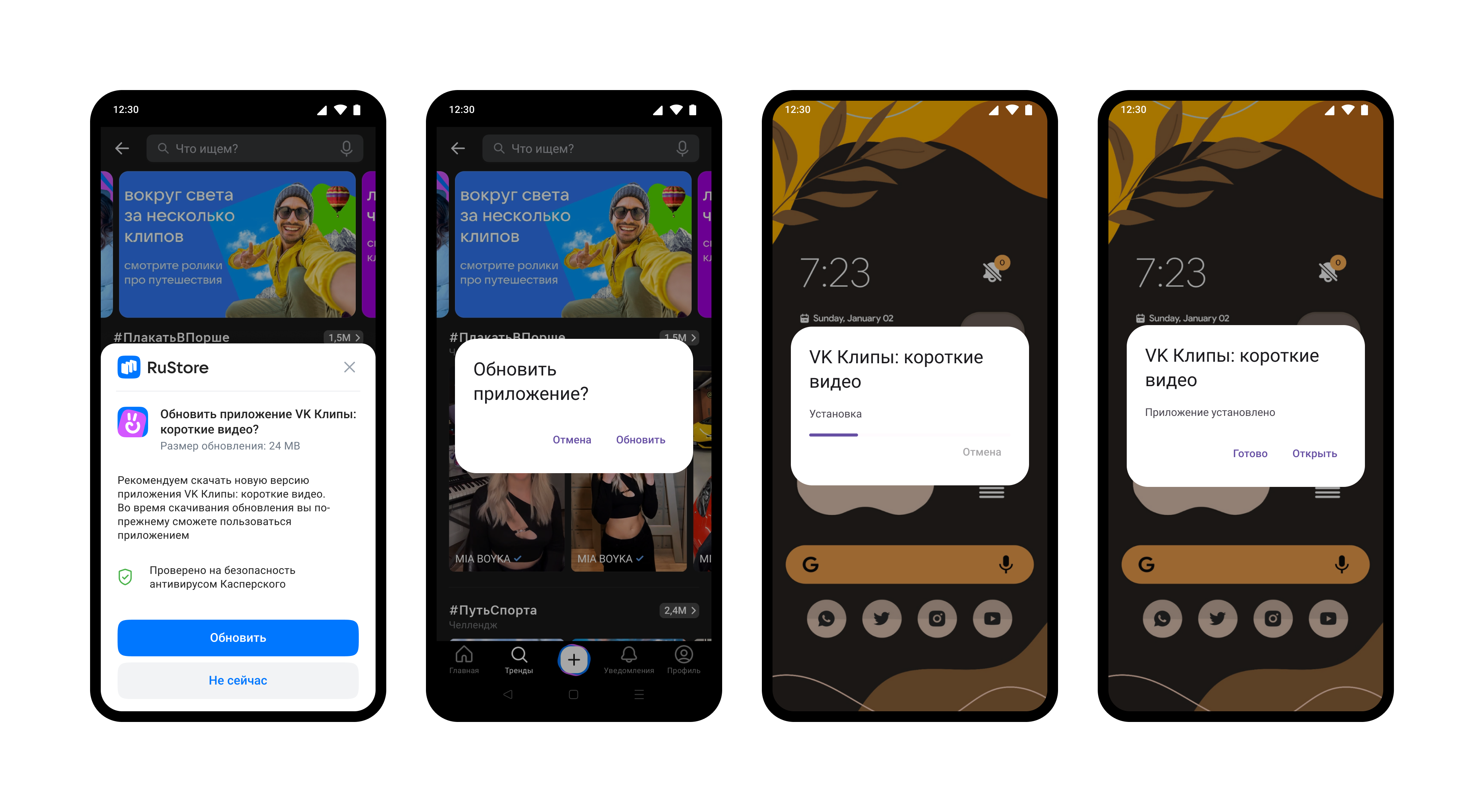
RuStore In-app updates SDK supports the current version of the application on the user's device. This helps the user see updates, evaluate performance improvements and the result of bug fixes.
User scenario example
Use RuStore In-app updates SDK to implement various update methods. Currently supported: delayed, silent (without UI from RuStore) and forced update.
Check out the sample application to learn how to properly integrate the update SDK.
Prerequisites
For the RuStore In-app updates SDK to work, the following conditions must be met.
- App uploaded to RuStore Console.
- App passed moderation (you don't have to publish the app).
- Test build signature (for example:
debug) of the app must match the signature of the app build that was uploaded to the console and passed moderation (for example,release).
- Android 8.0 or later.
- RuStore app version on the device is up-to-date.
- User is authorized in RuStore.
- RuStore app is allowed to install applications.
Connecting to the project
To connect, follow these steps.
- Copy plugin projects from the official RuStore repository to GitFlic.
- Open the Android project from the
godot_plugin_librariesfolder in your IDE. - Place the package
godot-lib.xxx.yyy.template_release.aarin thegodot_plugin_libraries/libsfolder, wherexxx.yyyis the version of your edition of Godot Engine.
The godot-lib.xxx.yyy.template_release.aar package for your version of Godot Engine can be found on the developer page on Sourceforge.net.
- Build the project with the
gradle assemblecommand.
If the build is successful, the following files will be created in the godot_example/android/plugins folder:
RuStoreGodotAppUpdate.gdap;RuStoreGodotAppUpdate.aar;RuStoreGodotCore.gdap;RuStoreGodotCore.aar.
Please pay special attention that the plugin libraries must be compiled for your version of Godot Engine.
-
Copy the contents of the
godot_example/android/pluginsfolder to theyour_project/android/pluginsfolder. -
In the Android build preset, in the Plugins list, check the lines Ru Store Godot App Update and Ru Store Godot Core.
Create update manager
Before calling library methods, you must create an update manager.
var _appUpdate_client: RuStoreGodotAppUpdateManager = null

func _ready():
    _appUpdate_client = RuStoreGodotAppUpdateManager.get_instance();
Check for updates
Before requesting an update, check to see if an update is available for your application. To check for updates, call the methodget_app_update_info. When calling this method, the following conditions are checked.
- The current version of RuStore is installed on the user's device.
- The user and the app are not banned in RuStore.
- RuStore app is allowed to install applications.
- User is authorized in RuStore.
Before using the method, you must subscribe to events once:
on_get_app_update_info_success;on_get_app_update_info_failure.
func _ready():
    # Initialization _appUpdate_client

    _appUpdate_client.on_get_app_update_info_success.connect(_on_get_app_update_info_success)
    _appUpdate_client.on_get_app_update_info_failure.connect(_on_get_app_update_info_failure)

func _on_get_app_update_info_success(response: RuStoreAppUpdateInfo):
    pass

func _on_get_app_update_info_failure(error: RuStoreError):
    pass
_appUpdate_client.get_app_update_info()
on_get_app_update_info_success returns object, which contains information about the need for an update. Request this information in advance to start the update download without delay at a convenient time for the user.
class_name RuStoreAppUpdateInfo extends Object

    var updateAvailability: ERuStoreUpdateAvailability.Item
    var installStatus: ERuStoreInstallStatus.Item
    var availableVersionCode: int

    func _init(json: String = ""):
        if json == "":
            updateAvailability = ERuStoreUpdateAvailability.Item.UNKNOWN
            installStatus = ERuStoreInstallStatus.Item.UNKNOWN
            availableVersionCode = 0
        else:
            var obj = JSON.parse_string(json)
            updateAvailability = int(obj["updateAvailability"])
            installStatus = int(obj["installStatus"])
            availableVersionCode = int(obj["availableVersionCode"])
-
updateAvailability— update availability:UNKNOWN (int == 0)— by default.UPDATE_NOT_AVAILABLE (int == 1)— no update needed.UPDATE_AVAILABLE (int == 2)— an update is required to be downloaded or an update has already been downloaded to the user's device.DEVELOPER_TRIGGERED_UPDATE_IN_PROGRESS (int == 3)— the update is already downloading or installation has already started.
-
installStatus— update installation status if the user is already installing the update at the current time:UNKNOWN (int == 0)— by default.DOWNLOADED (int == 1)— downloaded.DOWNLOADING (int == 2)— downloading.FAILED (int == 3)— error.PENDING (int == 5)— in anticipation.
-
availableVersionCode— update version code.
An update download can only be started if the updateAvailability field contains the valueUPDATE_AVAILABLE.
on_get_app_update_info_failure returns object with error information. The error structure is described in the Error Handling section.
Download and install updates
Using listener
After confirming the availability of the update (RuStoreAppUpdateInfo), you can receive the update download status. To do this, you need to subscribe to the on_state_updated event and call the register_listener method to launch a download status listener.
Check update status
Subscription to the on_state_updated event is performed once. Listening to the download process is activated using the register_listener method.
func _ready():
    # Initialization _appUpdate_client

    _appUpdate_client.on_state_updated.connect(_on_state_updated)
    _appUpdate_client.register_listener()

func _on_state_updated(installState: RuStoreInstallState):
    pass
The callback on_state_updated returns the RuStoreInstallState object with information about the progress of the update process.
class_name RuStoreInstallState extends Object

    var bytesDownloaded: int
    var totalBytesToDownload: int
    var percentDownloaded: float
    var installStatus: ERuStoreInstallStatus.Item
    var installErrorCode: ERuStoreInstallErrorCode.Item

    func _init(json: String = ""):
        if json == "":
            bytesDownloaded = 0
            totalBytesToDownload = 0
            percentDownloaded = 0
            installStatus = ERuStoreInstallStatus.Item.UNKNOWN
            installErrorCode = ERuStoreInstallErrorCode.Item.ERROR_UNKNOWN
        else:
            var obj = JSON.parse_string(json)
            bytesDownloaded = int(obj["bytesDownloaded"])
            totalBytesToDownload = int(obj["totalBytesToDownload"])
            installStatus = int(obj["installStatus"])
            installErrorCode = int(obj["installErrorCode"])
            if totalBytesToDownload > 0:
                percentDownloaded = float(bytesDownloaded) / totalBytesToDownload * 100
            else:
                percentDownloaded = 0
            if installStatus == ERuStoreInstallStatus.Item.DOWNLOADED:
                percentDownloaded = 100
-
installStatus— update installation status if the user is already installing the update at the current time:UNKNOWN (Int = 0)— by default;DOWNLOADED (Int = 1)— downloaded;DOWNLOADING (Int = 2)— downloading;FAILED (Int = 3)— error;PENDING (Int = 5)— in anticipation;
The update SDK does not have a special status for the situation when the user has canceled the update download. If the user aborted the update during the download phase, installStatus returns the original status UNKNOWN (0) with a Download button.
If the user has already downloaded the update, but canceled the installation, then installStatus will return the value DOWNLOADED (1).
Let's consider the following options.
- The user started downloading the update, but canceled the download - in this case:
updateAvailability-UPDATE_AVAILABLE(2);installStatus-UNKNOWN(0).
- The user downloaded the update file, but did not install it - in this case:
updateAvailability-UPDATE_AVAILABLE(2);installStatus-DOWNLOADED(1).
bytesDownloaded— number of bytes downloaded;totalBytesToDownload— the total number of bytes to download;packageName— service pack name;installErrorCode— error code during download. Error codes are described in the section Error handling.
Delete listener
If the listener is no longer needed, use the unregisterListener method to remove the listener.
_appUpdate_client.unregister_listener()
Start downloading update
Delayed update
Description of deferred update scenario
Update with UI from RuStore
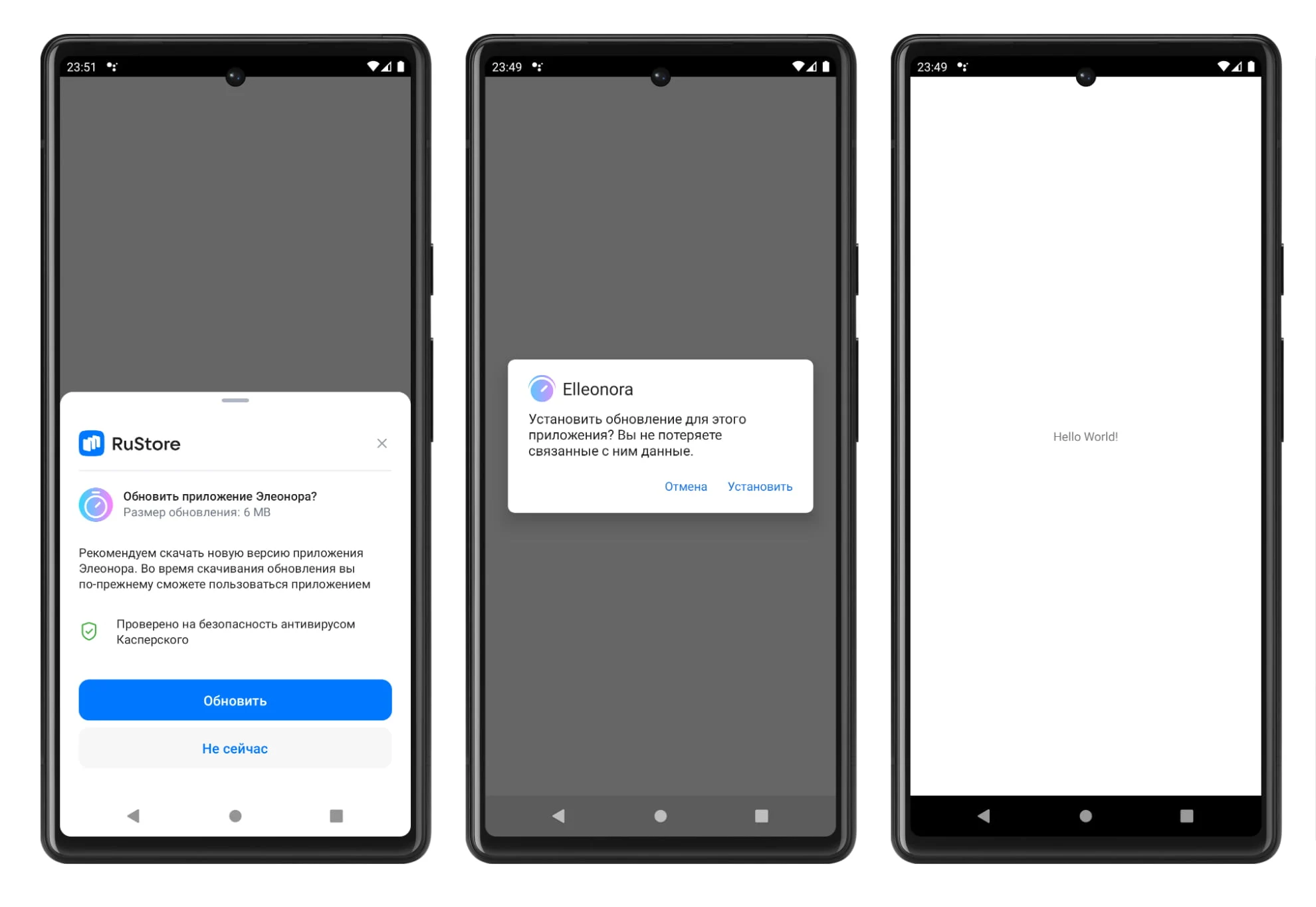
- The user will be shown a dialog with the RuStore UI to confirm the update.
- When you click the Update button, a dialog box will appear to confirm the installation of the update.
- Once the installation is complete, the application will close.
Run update script
Before using the methods for launching update scripts, you must subscribe to events once:
on_start_update_flow_success;on_start_update_flow_failure.
To start downloading an application update, use the start_update_flow_delayed method.
The RuStoreAppUpdateInfo object becomes invalid after one use. To call the start_update_flow_delayed method again, request the RuStoreAppUpdateInfo object again using the get_app_update_info method.
See the Checking for updates section.
func _ready():
    # Initialization _appUpdate_client

    _appUpdate_client.on_start_update_flow_success.connect(_on_start_update_flow_success)
    _appUpdate_client.on_start_update_flow_failure.connect(_on_start_update_flow_failure)

func _on_start_update_flow_success(flowResult: ERuStoreUpdateFlowResult.Item):
    pass

func _on_start_update_flow_failure(error: RuStoreError):
    pass
_appUpdate_client.start_update_flow_delayed()
The on_start_update_flow_success callback returns an ERuStoreUpdateFlowResult.Item enum with information about the update result:
RESULT_OK (int = -1)- the user confirmed downloading the update;RESULT_CANCELED (int = 0)- the user refused to download the update.
The on_start_update_flow_failure callback returns a RuStoreError object with information about the error. The structure of the RuStoreError error is described in the Error Handling section.
After receiving the status ERuStoreUpdateFlowResult.Item.DOWNLOADED in the installStatus field of the RuStoreInstallState object, the install update method must be called.
Forced update
Description of the forced update scenario
Update with UI from RuStore

- The user will be shown a full-screen dialog with the RuStore UI to confirm the update. Application use will be blocked until the update is installed.
- When you click the Update button, a dialog box will appear to confirm the installation of the update.
- Next, when you click on the Install button, a full-screen dialog about installing a new version of the application will appear.
- Once the installation is complete, the application will restart.
The application will be restarted if the Rustore version is greater than or equal to 1.37. If the version of Rustore is lower, the application will close to install the update and will not be reopened when the update is completed.
Run update script
After receiving a successful response fromget_appupdateinfo, you can check the availability of a force update using the methodcheck_is_immediate_update_allowed.
# Initializing _appUpdate_client

var isAvailable: bool = _appUpdate_client.check_is_immediate_update_allowed()
true- forced update is available.false- forced update is not available.
Result of the method check_is_immediate_update_allowed is recommended to be used to decide whether to run a forced update, but this result does not affect the ability to run the script. The need to run the update script may occur according to your internal logic.
Before using the methods for launching update scripts, you must subscribe to events once:
on_start_update_flow_success;on_start_update_flow_failure.
To start downloading an application update, use the start_update_flow_immediate method.
The RuStoreAppUpdateInfo object becomes invalid after one use. To call the start_update_flow_immediate method again, request the RuStoreAppUpdateInfo object again using the get_app_update_info method.
func _ready():
    # Initialization _appUpdate_client

    _appUpdate_client.on_start_update_flow_success.connect(_on_start_update_flow_success)
    _appUpdate_client.on_start_update_flow_failure.connect(_on_start_update_flow_failure)

func _on_start_update_flow_success(flowResult: ERuStoreUpdateFlowResult.Item):
    pass

func _on_start_update_flow_failure(error: RuStoreError):
    pass
_appUpdate_client.start_update_flow_immediate()
The on_start_update_flow_success callback returns an ERuStoreUpdateFlowResult.Item enum with information about the update result:
RESULT_OK (int = -1)- update completed, the code may not be received, because the application terminates at the time of update;RESULT_CANCELED (int = 0)- the flow was interrupted by the user or an error occurred. It is assumed that upon receiving this code, the application should be terminated.ACTIVITY_NOT_FOUND (int = 2)- RuStore is not installed, or a version is installed that does not support forced updating (RuStore versionCode<191).
The on_start_update_flow_failure callback returns a RuStoreError object with information about the error. The structure of the RuStoreError error is described in the Error Handling section.
If the update is successful, no further action is required.
Silent update
Description of silent update scenario
Update without UI from RuStore
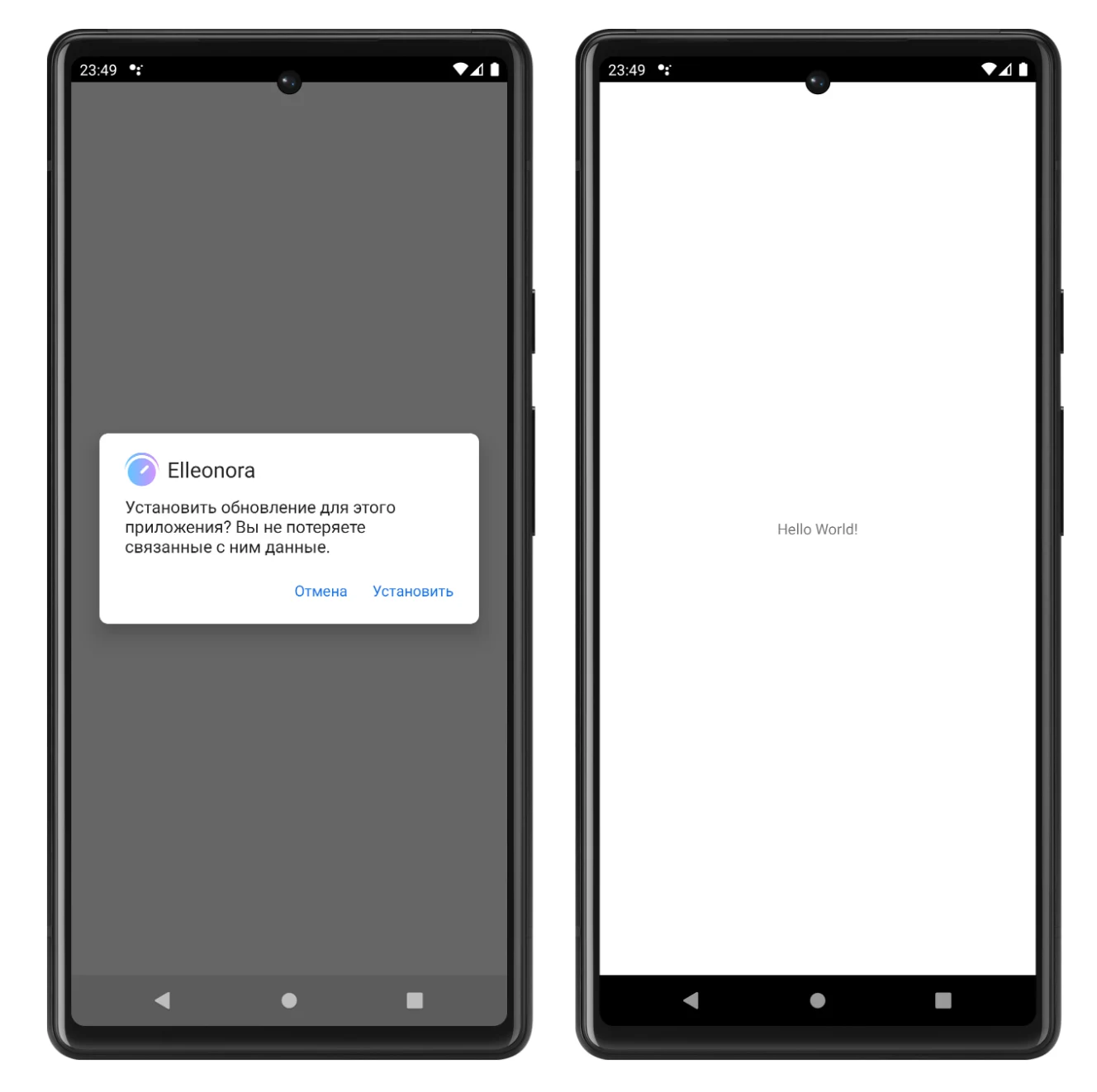
- The user will be shown a dialog box to confirm the installation of the update (the update will be downloaded in the background).
- Once the installation is complete, the application will close.
Run update script
Before using the methods for launching update scripts, you must subscribe to events once:
on_start_update_flow_success;on_start_update_flow_failure.
To start downloading an application update, use the start_update_flow_silent method.
The RuStoreAppUpdateInfo object becomes invalid after one use. To call the start_update_flow_silent method again, request the RuStoreAppUpdateInfo object again using the get_app_update_info method.
See the Checking for updates section.
func _ready():
    # Initialization _appUpdate_client

    _appUpdate_client.on_start_update_flow_success.connect(_on_start_update_flow_success)
    _appUpdate_client.on_start_update_flow_failure.connect(_on_start_update_flow_failure)

func _on_start_update_flow_success(flowResult: ERuStoreUpdateFlowResult.Item):
    pass

func _on_start_update_flow_failure(error: RuStoreError):
    pass
_appUpdate_client.start_update_flow_silent()
The on_start_update_flow_success callback returns an ERuStoreUpdateFlowResult.Item enum with information about the update result:
RESULT_OK (int = -1)- the update download task has been registered.
The on_start_update_flow_failure callback returns a RuStoreError object with information about the error. The structure of the RuStoreError error is described in the Error Handling section.
Call the update installation method after receiving the ERuStoreUpdateFlowResult.Item.DOWNLOADED status in the installStatus field of the RuStoreInstallState object.
For a silent update, it is recommended to implement your own interface.
Update installation
It is recommended to notify the user that the update is ready for installation.
Once the update file download is complete, you can start installing the update. To start the update installation, use the complete_update method. Before using the method, you must subscribe to the event once.
on_complete_update_failure.
func _ready():
    # Инициализация _appUpdate_client

    _appUpdate_client.on_complete_update_failure.connect(_on_complete_update_failure)

func _on_complete_update_failure(error: RuStoreError):
    pass
_appUpdate_client.complete_update()
The update occurs through the native Android tool. If the update is successful, the application will close.
The on_complete_update_failure callback returns a RuStoreError object with information about the error in the error parameter. The structure of the RuStoreError error is described in the Error Handling section.
Errors processing
When receiving any *_failure event, it is not recommended to display an error to the user yourself. Displaying an error may negatively impact the user experience.
class_name RuStoreError extends Object

    var description: String

    func _init(json: String = ""):
        if json == "":
            description = ""
        else:
            var obj = JSON.parse_string(json)
            description = obj["detailMessage"]
description– error description.
Possible errors
RuStoreNotInstalledException— RuStore is not installed on the user's device;RuStoreOutdatedException— RuStore version installed on the user's device does not support this SDK;RuStoreUserUnauthorizedException— user is not authorized in RuStore;RuStoreException— basic RuStore error from which other errors are inherited;RuStoreInstallException(public val code: Int)— download and installation error.ERROR_UNKNOWN(Int = 4001)— unknown error.ERROR_DOWNLOAD(Int = 4002)— error while downloading.ERROR_BLOCKED(Int = 4003)— installation blocked by system.ERROR_INVALID_APK(Int = 4004)— invalid update APK.ERROR_CONFLICT(Int = 4005)— conflict with the current app version.ERROR_STORAGE(Int = 4006)— insufficient device storage.ERROR_INCOMPATIBLE(Int = 4007)— incompatible with device.ERROR_APP_NOT_OWNED(Int = 4008)— application not purchased.ERROR_INTERNAL_ERROR(Int = 4009)— internal error.ERROR_ABORTED(Int = 4010)— user refused to install the update.ERROR_APK_NOT_FOUND(Int = 4011)— APK for installation not found.ERROR_EXTERNAL_SOURCE_DENIED(Int = 4012)— update prohibited. For example, the first method responses that an update is not available, but the user calls the second method.ERROR_ACTIVITY_SEND_INTENT(Int = 9901)— error while sending intent for opening an activity.ERROR_ACTIVITY_UNKNOWN(Int = 9902)— unknown error on activity opening.